# Recording contact made outside Participant Kit
Source: https://participantkit.com/help/courses/how-to/recording-contact-outside-participant-kit
Use this when you've emailed someone without using Participant Kit. That might be from your own inbox, or to a list through another email platform.
Participant Kit keeps a **Last contacted** date for everyone. Messages sent from Participant Kit update it automatically. Contact made anywhere else doesn't, until you record it.
Keeping that date right matters because your whole team relies on it. By default, your panel holds back anyone contacted in the last 30 days, so they aren't asked to take part too often. If the date is wrong, someone could be contacted again the same week.
There are two ways to record contact:
| Where | Who | Use it when |
|---|---|---|
| A participant's profile, in a study | One person | You emailed a participant from your own inbox |
| Your panel table | As many people as you need | You sent to a list from another email platform |
## Record contact for one person in a study
Open the study, go to the **Participants** tab and open the participant's profile.
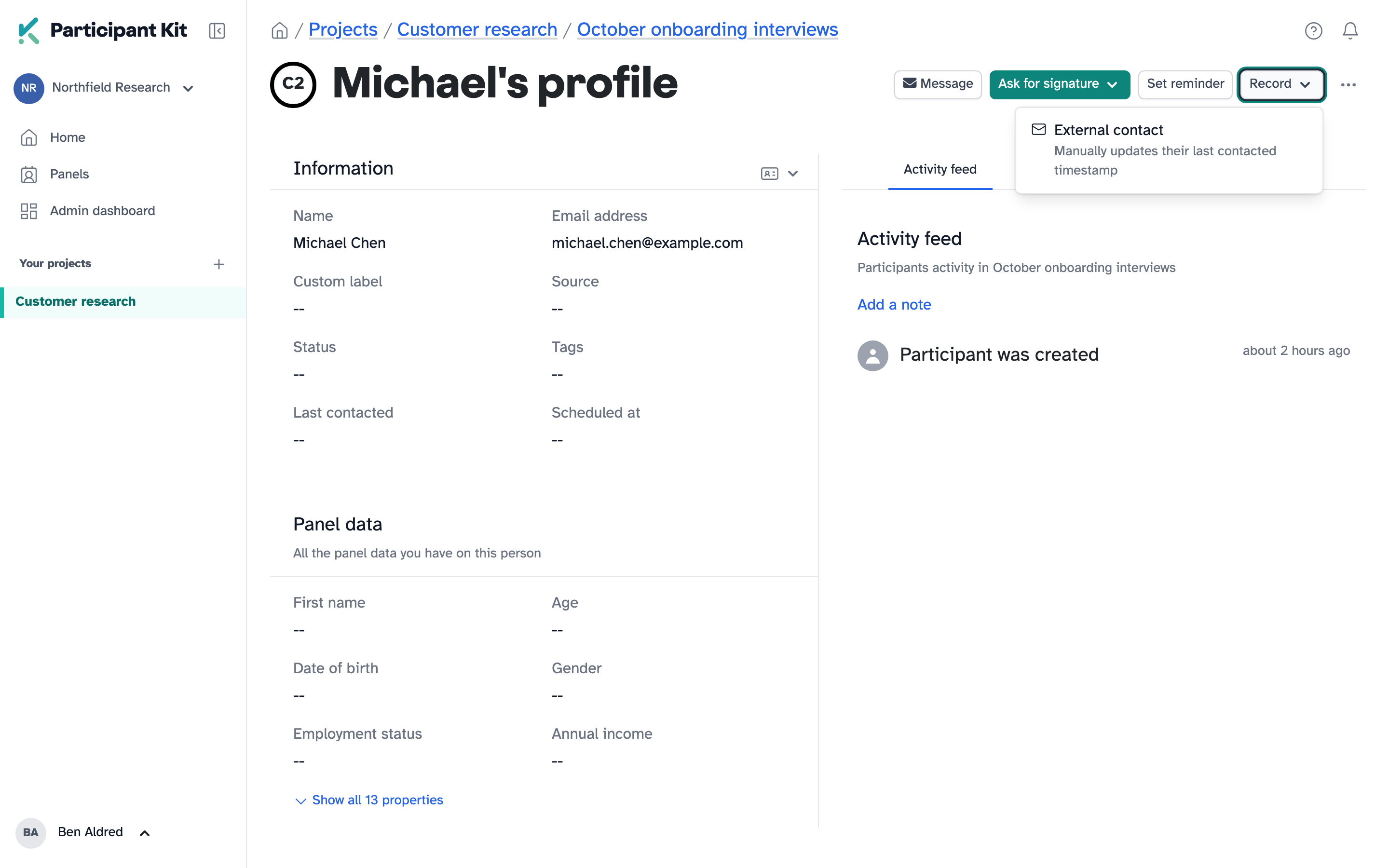
Click **Record**, next to **Set reminder**, then **External contact**.
Choose the **Date and time contacted**. Add a **Description** saying what the contact was, for example "Emailed from my own inbox about the October study". The description is optional, but it's what tells your team why the date changed.
Click **Record**.
## Record contact for people on your panel
You need to be an admin, or a panel manager with access to the panel.
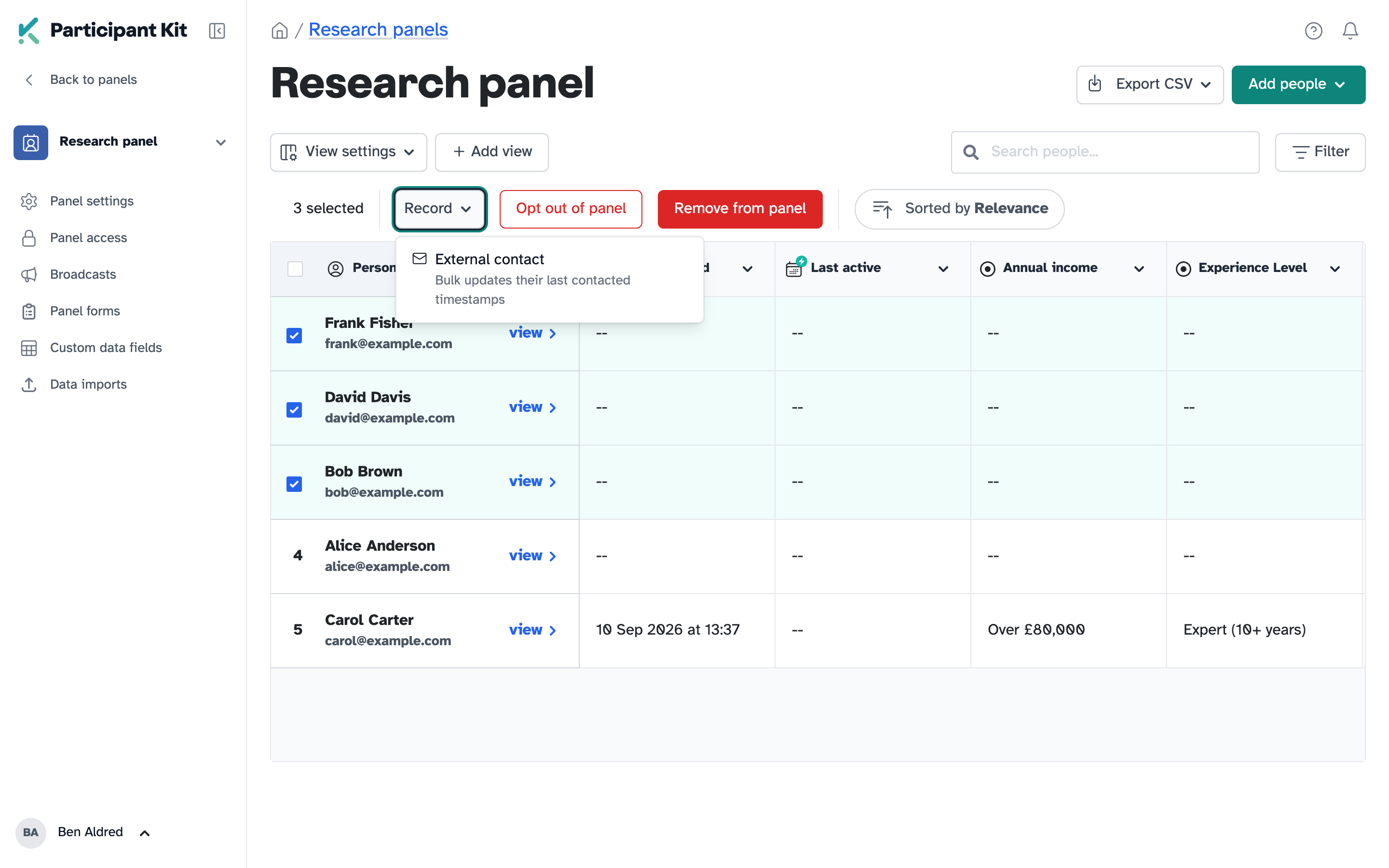
Open your panel and select the people you contacted. Use **Filter** to narrow the table down first if that's quicker.
When you tick someone's box, on the left of the table, a bar appears above it. Click **Record** in that bar, then **External contact**.
Choose the **Date and time contacted** and add a **Description**.
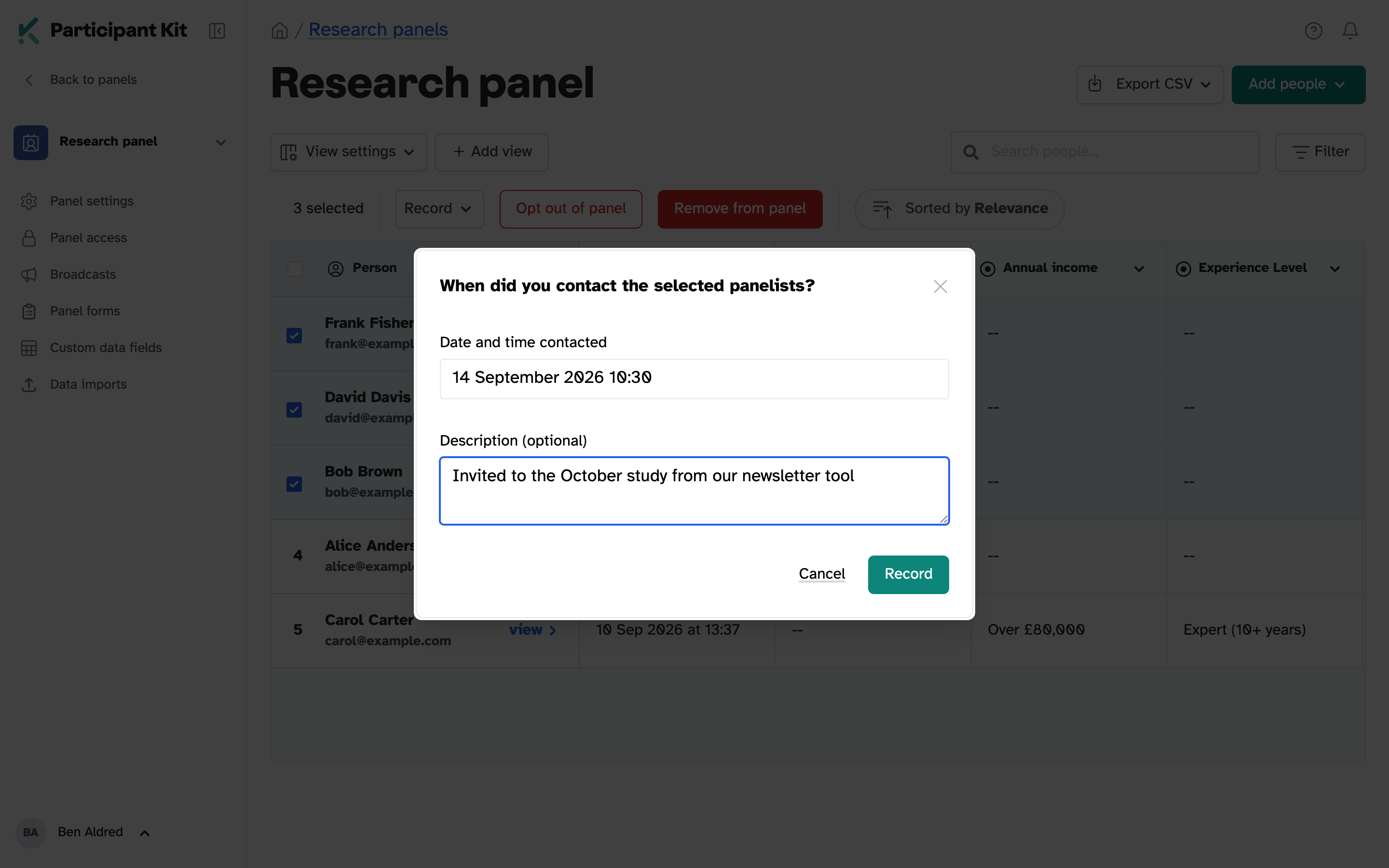
Click **Record**.
For a long list, it may take a few seconds for the changes to appear.
To record just one panellist, open their profile and use **Record** there instead.
## Check it's working
Open the person's profile. Their activity feed shows **Recorded as contacted**, with the date, who recorded it and the description.
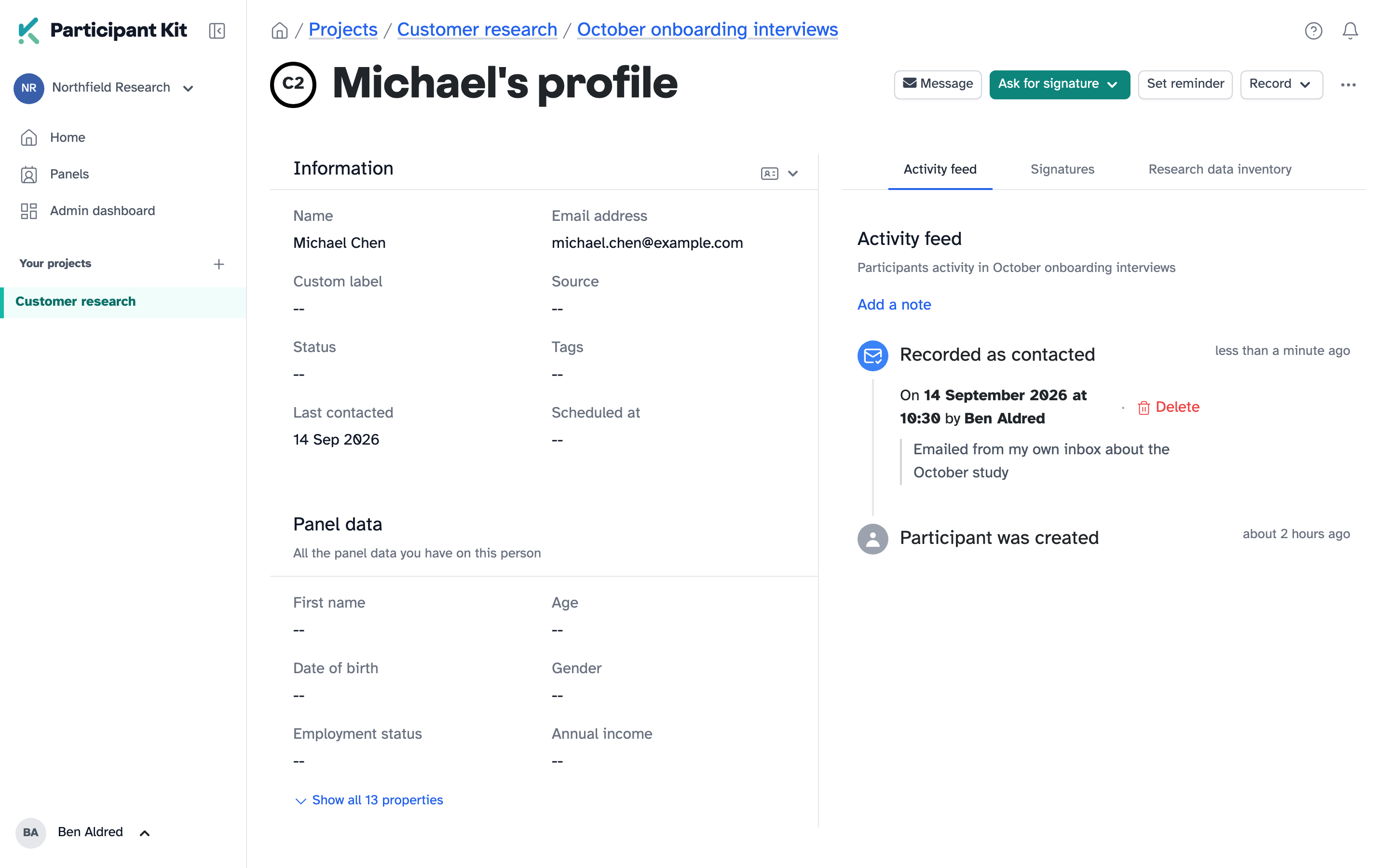
Their **Last contacted** date updates too. If your panel has a rule that holds back people contacted recently, it uses this date.
## If you made a mistake
Click **Delete** on the recorded contact in their activity feed. Their **Last contacted** date goes back to what it was before, unless they've been contacted again since.
If you recorded a list by mistake, delete the recorded contact on each person's profile.
## Key takeaways
💡 **Remember:** Recording an older date never moves someone's **Last contacted** date backwards. If they've been contacted more recently, the later date stays.
⚠️ **Watch for:** Check your selection before you record a list. There's no undo for the whole list.
⚡ **Quick tip:** Write the description for a colleague who wasn't there. Say what you sent and where from.