
Filtering your panel to find the right people
Use this when you want to narrow a list of people down to the ones who fit your research. For example, people under 30 who are students or unemployed, or people who haven’t been contacted in the last three months.
You’ll find the same filters in several places:
- your panel’s people table
- Add from panel and Add to shortlist, when you add people to a study
- choosing who gets a broadcast
- the Candidates tab of a study, where you can also filter by screener answers
1. Add a filter
Click Filter, above the table. Then click Add filter.
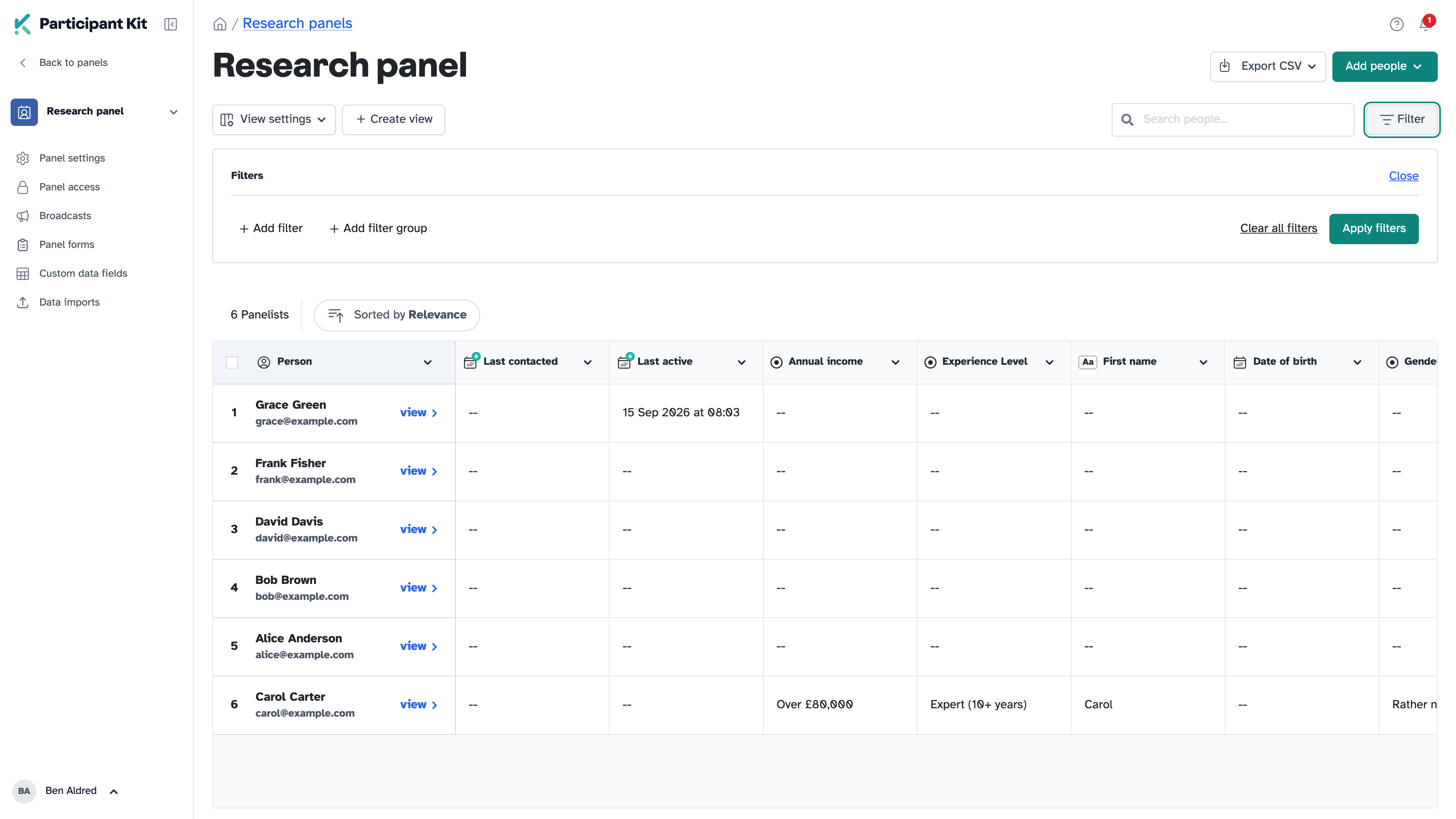
Click Select a property to filter by and choose what to filter on, such as a date, a source or one of your panel’s own fields. Start typing to search the list.
Choose how to compare it, then enter a value if it needs one. What you can pick depends on the property:
- text: is, is not, contains, doesn’t contain, has no value, has any value
- numbers: is, is not, is less than, is greater than, has no value, has any value
- dates: is, is not, is before, is on or before, is after, is on or after, has no value, has any value
- a question with one answer: is, is not, has no value, has any value
- a question with several answers: contains, doesn’t contain, has no value, has any value
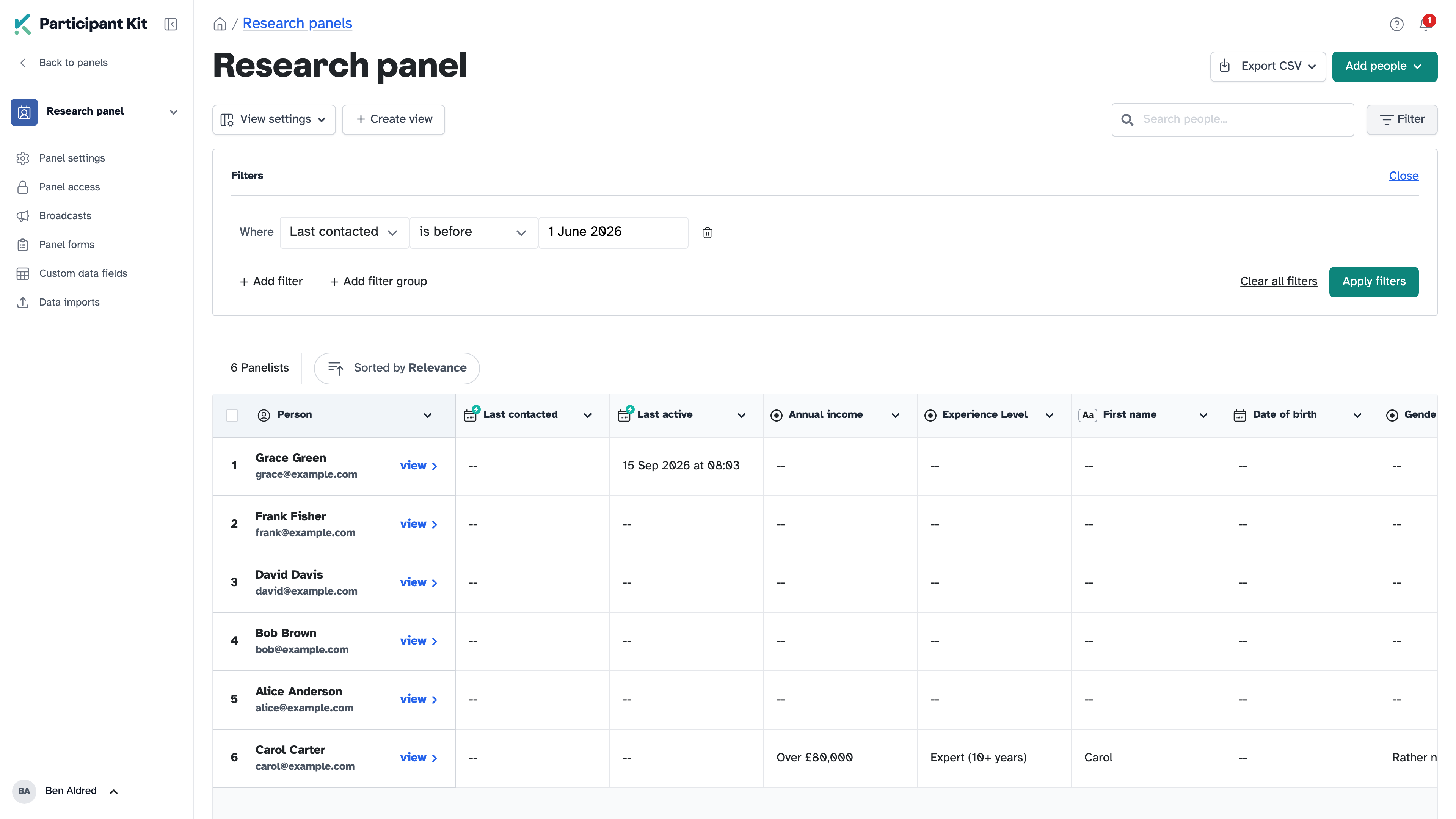
2. Apply your filters
Click Apply filters. The list doesn’t change until you do.
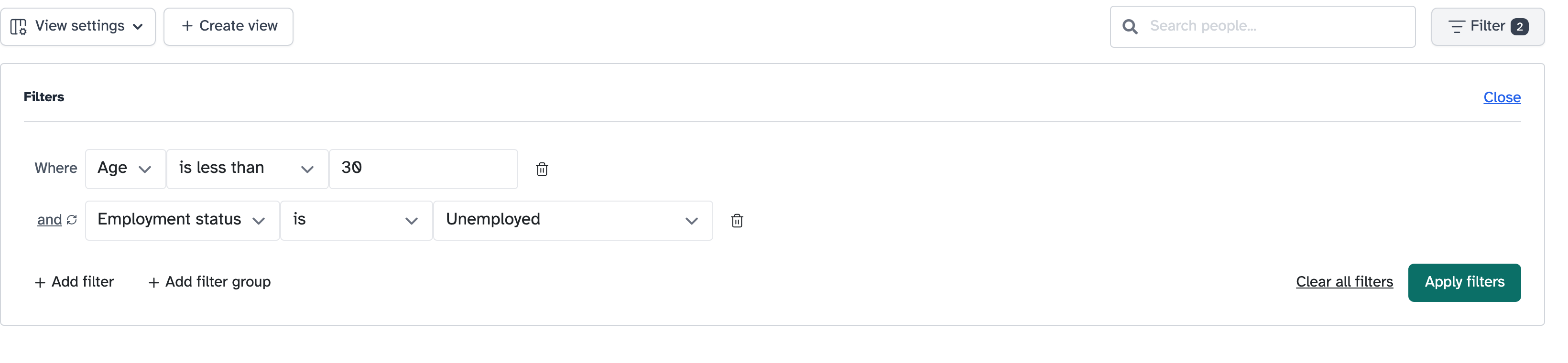
Filter shows how many filters are applied. To start again, click Clear all filters.
3. Combine filters with “and” or “or”
Click Add filter again to add another row. The word between rows decides how they combine:
- and: people must match every filter
- or: people only need to match one
Click the word to switch it. This changes every and or or outside a group, so those filters all combine the same way. A group has its own, which you switch separately.
4. Group filters
Use a group when you need “and” and “or” together. For example, people under 30 who are students or unemployed.
- Add a filter for “Age is less than 30”.
- Click Add filter group. The group starts as All of the following are true…
- Inside the group, add “Employment status is Full time student”, then a second filter for “Unemployed”.
- Click the word between them to change it to or. The group now reads Any of the following are true…
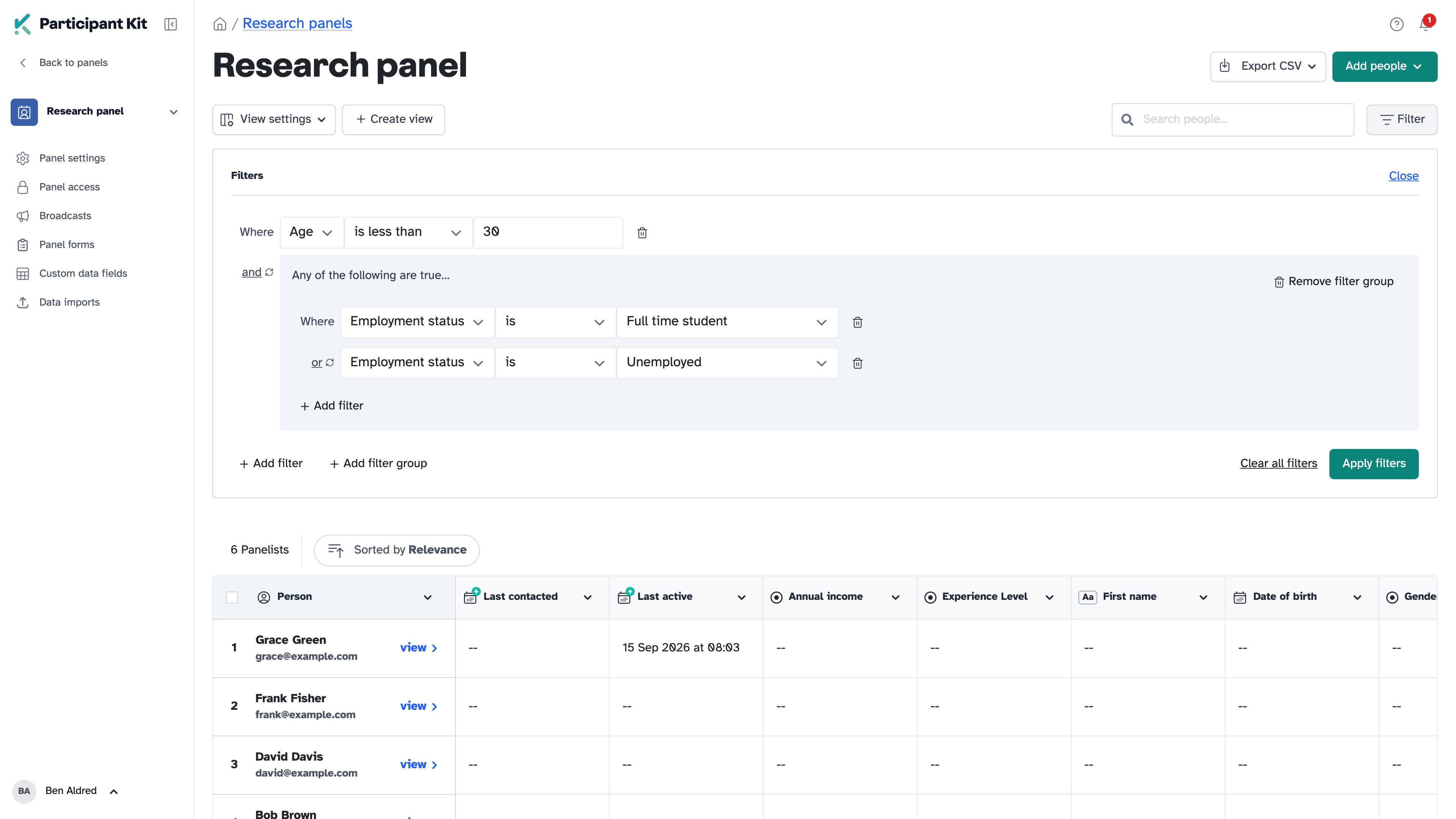
To remove a group and everything in it, click Remove filter group.
Watch out for people with no date
A date filter like is before only matches people who have a date. Anyone with no date is left out.
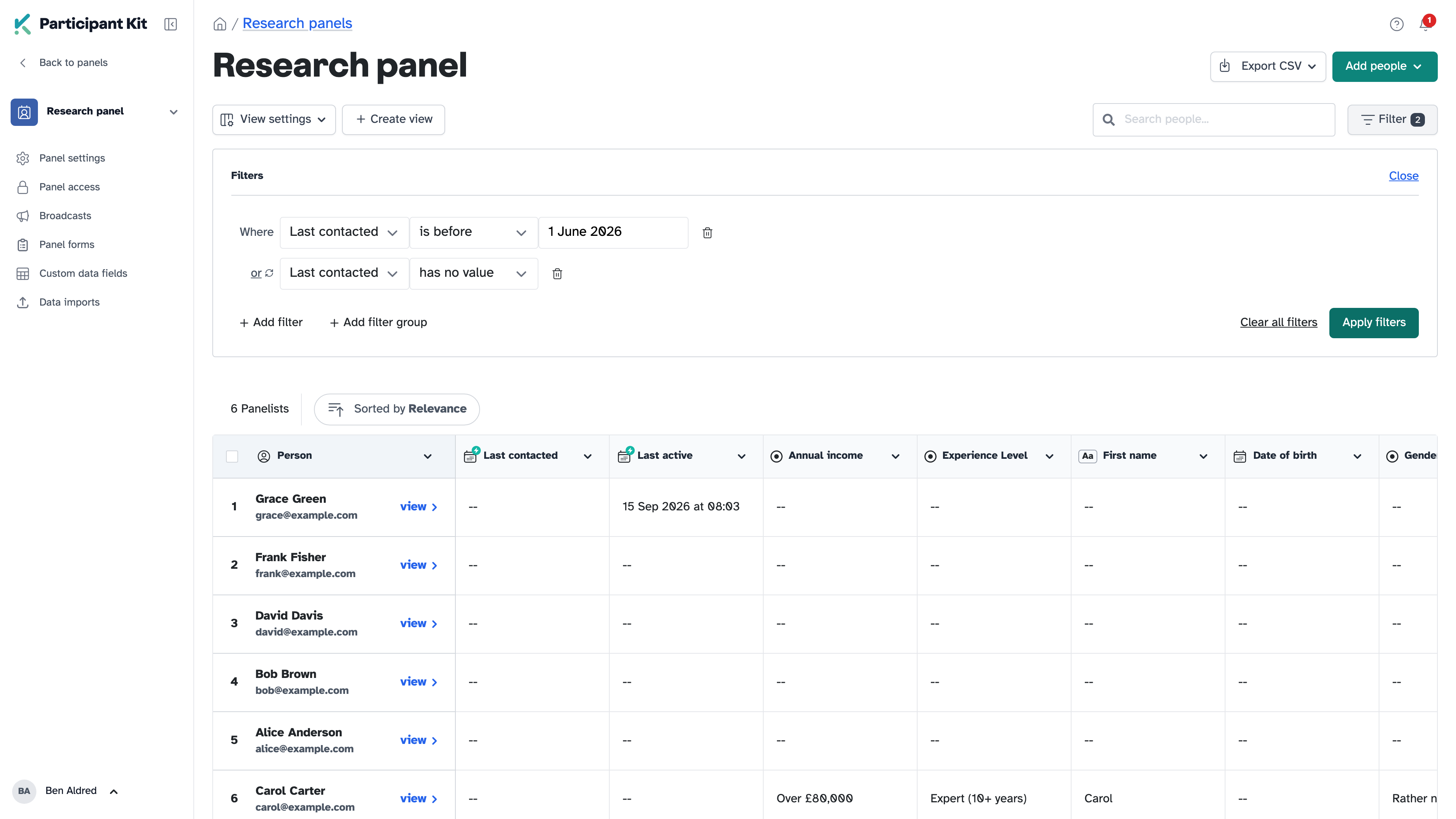
So “Last contacted is before 1 June” doesn’t include people who have never been contacted. To include them, add a second filter, “Last contacted has no value”, and switch the word between them to or.
Key takeaways
💡 Remember: Nothing changes until you click Apply filters.
🧪 Try: Use a group to mix “and” with “or”, like under 30 and (students or unemployed).
⚠️ Watch for: Date filters leave out people with no date. Add “has no value” with or to include them.
⚡ Quick tip: Looking for one person on your panel? Use Search people, above the table. It finds people by name or email address.