
Saving views of your panel table
Use this when you keep building the same list of people. A view remembers the columns, the sort order and the filters on your panel’s people table, so you can get back to that list in one click.
For example, a view for people you have never contacted, or one for everyone who signed up this month.
Views are personal to you. Nobody else on your team sees the views you make, and you don’t see theirs.
Who can use this
Anyone who can see the panel. Panels can sometimes be restricted, so if you expect to have access and don’t, contact your organisation admin to be given access.
1. Set the table up the way you want it
Get the list looking right first:
- click View settings to choose which columns show, and drag them into the order you want
- click the arrow next to a column heading, then Sort ascending or Sort descending
- click Filter to narrow the list down, then Apply filters
For help with filters, see Filtering your panel to find the right people.
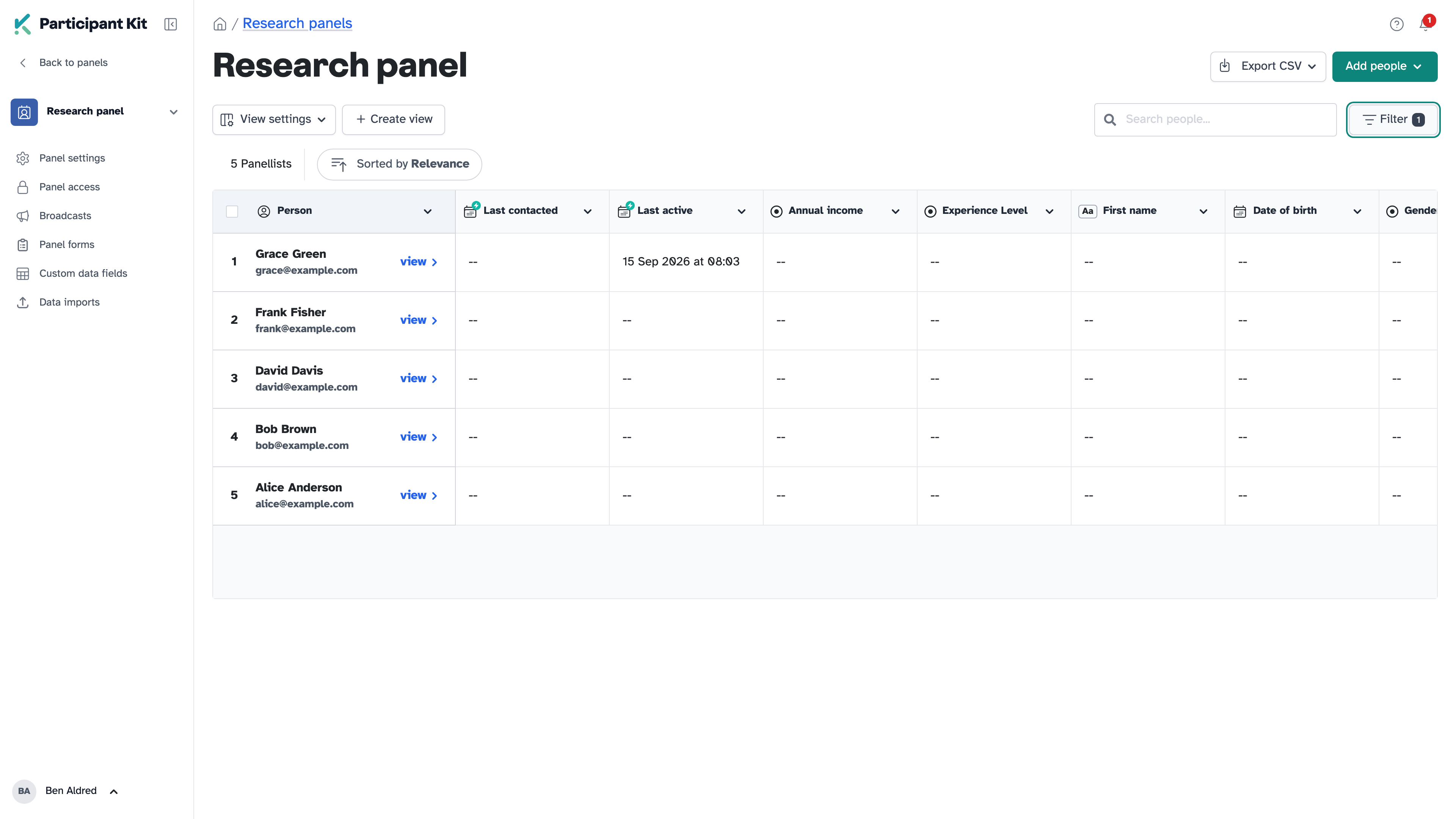
2. Save it as a view
Click Create view, above the table. Type a name, then click Create view again.
Your view opens straight away, and its name replaces Default view on the button above the table.
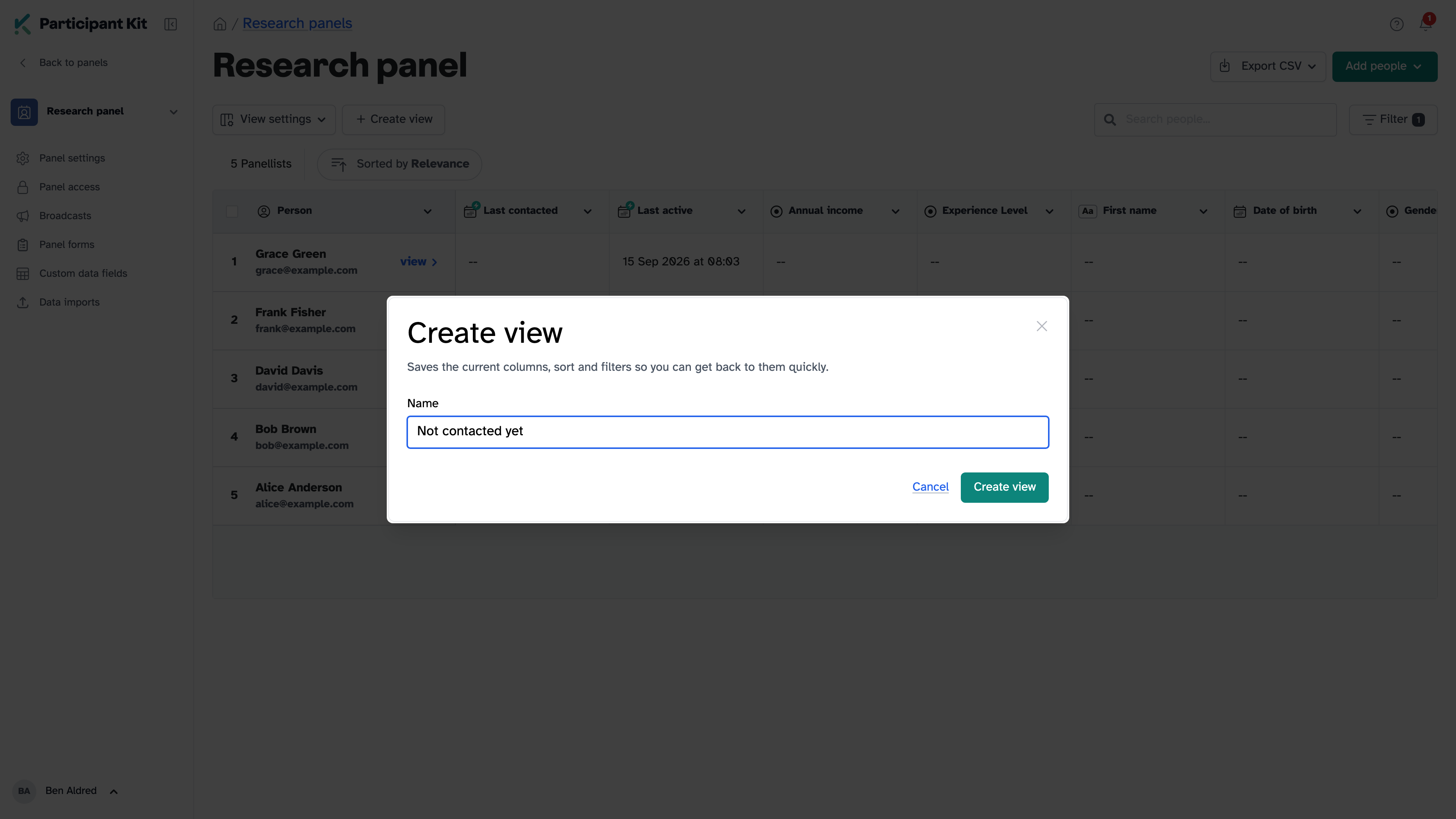
Name it after the people in it, like “Not contacted yet”, rather than after the filter you used.
3. Switch between views
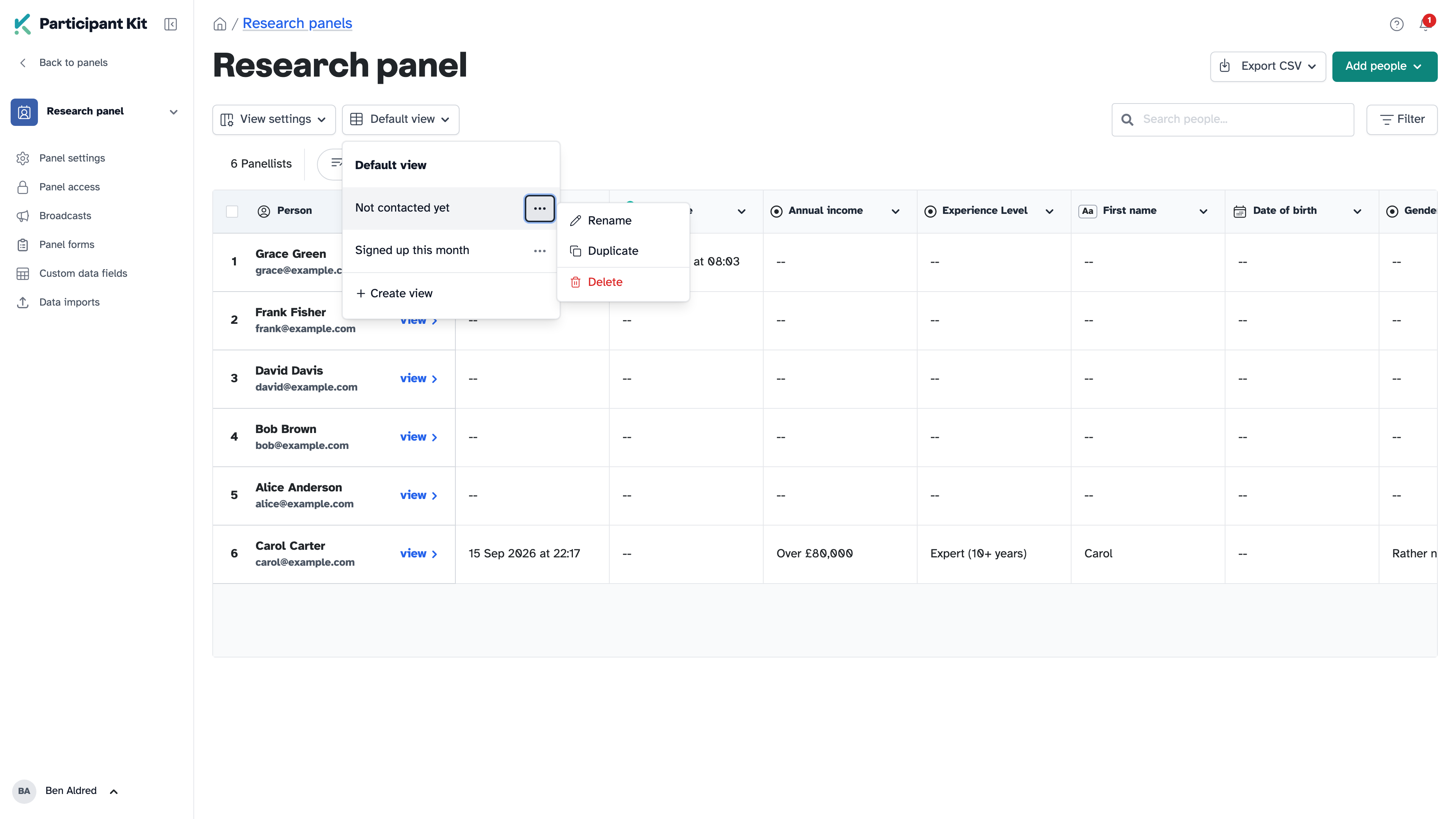
Click the view name above the table to see all your views. Click one to open it, or click Default view to go back to the panel’s usual table.
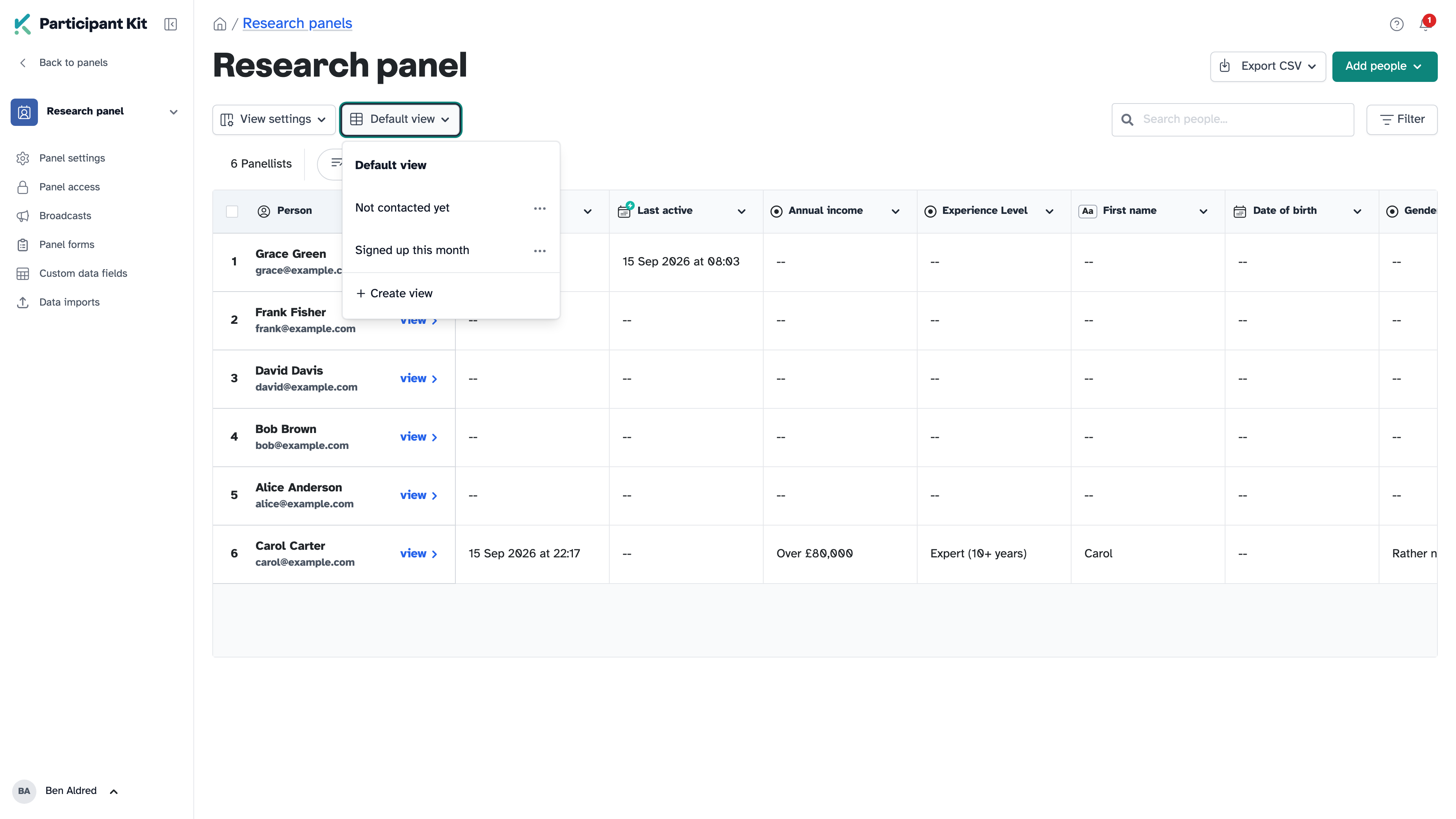
Once you have saved a view, Create view moves into this menu.
4. Change a view
Change the columns, the sort order or the filters while a view is open, and a blue dot appears next to its name. Two buttons appear with it:
- Save keeps the change in the view
- Discard puts the view back the way it was
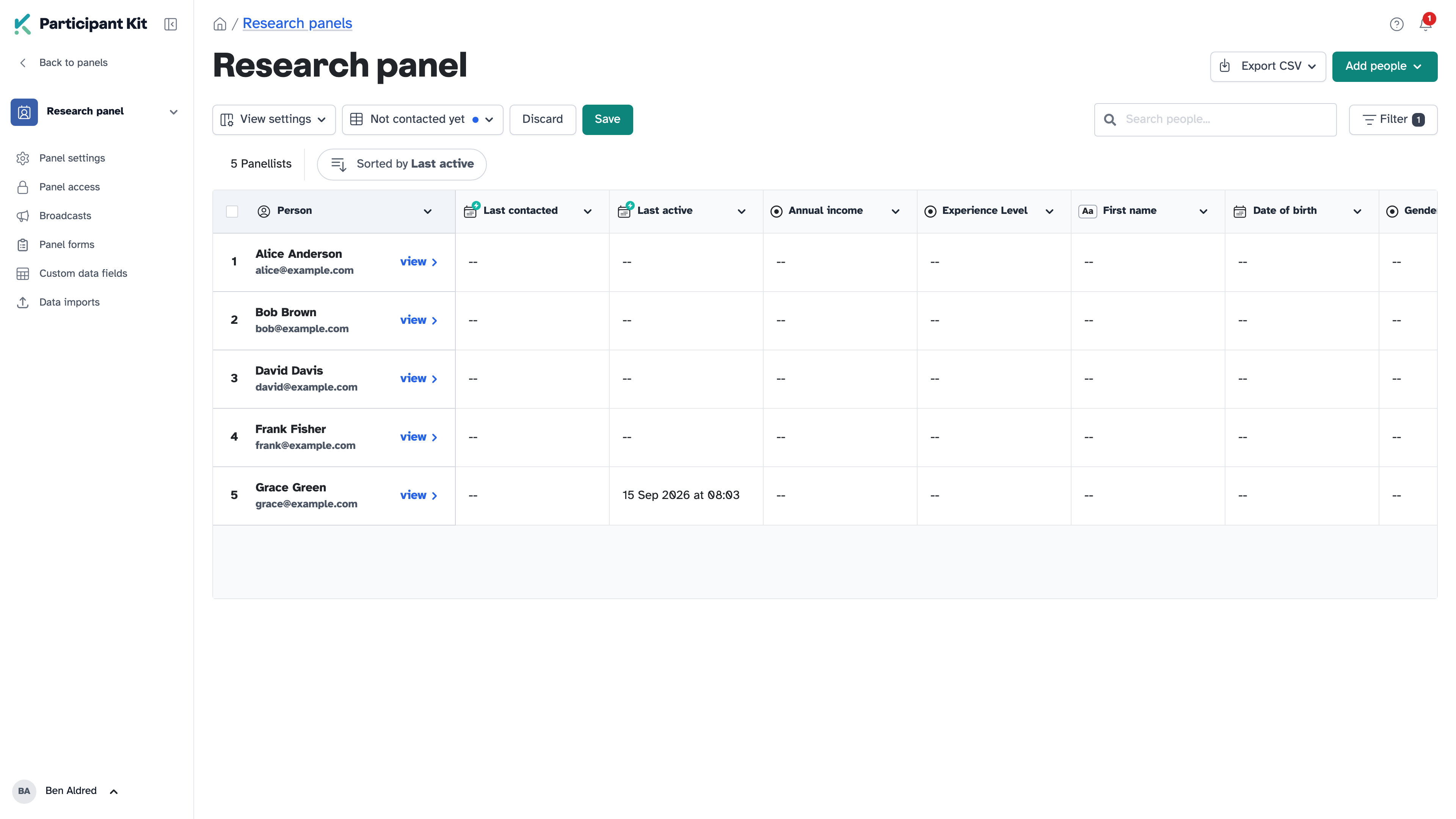
If you leave the page without clicking either, the change is lost and the view stays as it was.
To keep the change without losing the original, click Create view instead and give the changed version its own name. The view you started from is left alone.
5. Rename, duplicate or delete a view
Click the view name to open the list, then click the … button next to a view:
- Rename changes the name. Names have to be different from your other views on this panel.
- Duplicate makes a copy, called “Copy of” the name of the original. Use it when you want a variation of a view you already trust.
- Delete asks you to confirm first. It only removes the saved columns, sort and filters. Nobody in the panel is affected.
What a view doesn’t remember
A view doesn’t save what you typed into Search people.
The Default view remembers your columns and sort order, but not your filters. Filters there are gone as soon as you leave the page. If you want a set of filters to stick, save it as a view.
Key takeaways
💡 Remember: A view saves the columns, the sort order and the filters, and nothing else.
🧪 Try: Save a view for the list you build most often, like people you have never contacted.
⚠️ Watch for: Changes to a view are lost if you leave the page. Click Save or Discard before you go.
⚡ Quick tip: Views are yours alone. If you send someone the link to one, they can’t open it.