
Ask your panel more questions with screeners
Friday Drop
Friday Drop 008. Find out who's in your panel and save the answer straight to their panel record.
Friday Drop, batch 008. This week is for panel managers who want to know more about the people already in their panel.
A panel screener is a form you send to your panellists in a broadcast. Each person gets their own link, so their answers are saved straight to their panel record. You can then filter your panel by those answers.
Three ways to use it
Find out more about who’s in your panel
Maybe you’ve added a new field to your panel. Maybe there’s something you never thought to ask.
You might have a new product line you want to ask people about. Or you’ve been asked to collect location data you didn’t have before.
Send a screener to the people already in your panel and their records fill in as they answer.
Keep your sign-up form short
Ask only for the basics to get people to join. We’ve seen customers ask for contact details and some demographic information, so they can do some basic screening. Then they send a screener to collect more.
It turns joining into a two-stage process. That helps when you don’t want to overwhelm people with a long recruitment form straight away.
Keep your panel up to date
People change jobs, move house and get new phones. Send the same screener again and ask people to fill it in.
Their new answers replace the old ones. So you’re filtering on this year’s job titles, not the ones from when they joined.
🎟️ Golden ticket. Want your panel to keep itself up to date? With participant profiles, people change their own details whenever something changes, so you don’t have to ask. We’re putting a list together of people who might want it earlier. Get on the list
Build a screener
Open your panel and click Panel forms, then New form and Panel screener. Add your questions and choose a panel field for each one. That’s where the answers are saved.
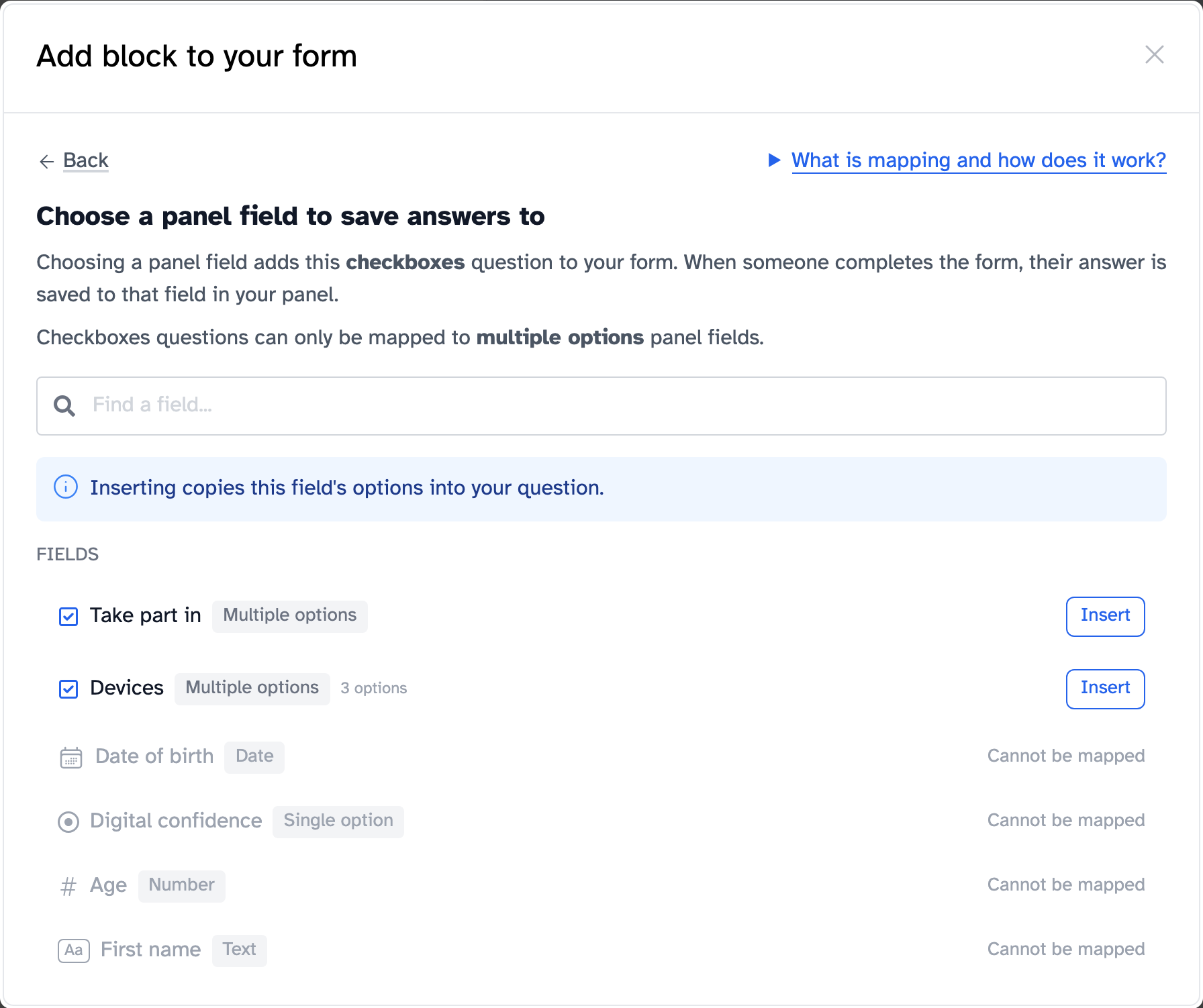
Send it in a broadcast
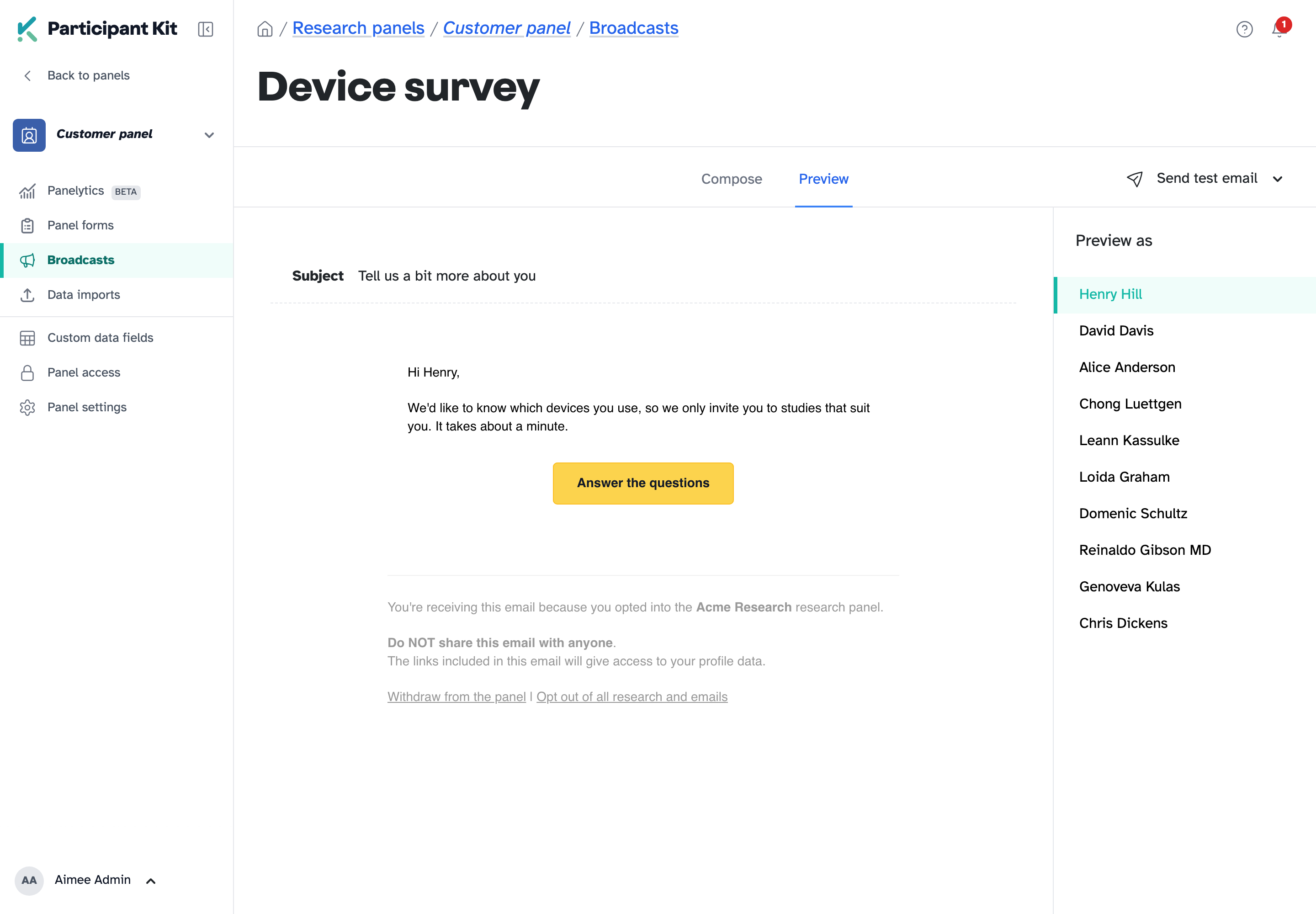
In a broadcast, click Forms in the toolbar, choose your screener and type the button text. Each panellist gets a button with their own link behind it.
Help article
New to Participant Kit? Book a call and we’ll show you round.