
Customise what participants see after your consent form
Friday Drop
Friday Drop 009. Write your own pages for when participants agree or say no. Your words, in your form's language.
Friday Drop, batch 009. This week is for researchers who want more control over the words participants read.
You can now write the pages people see after they submit a consent form or agreement. One page for when they agree. One for when they don’t.
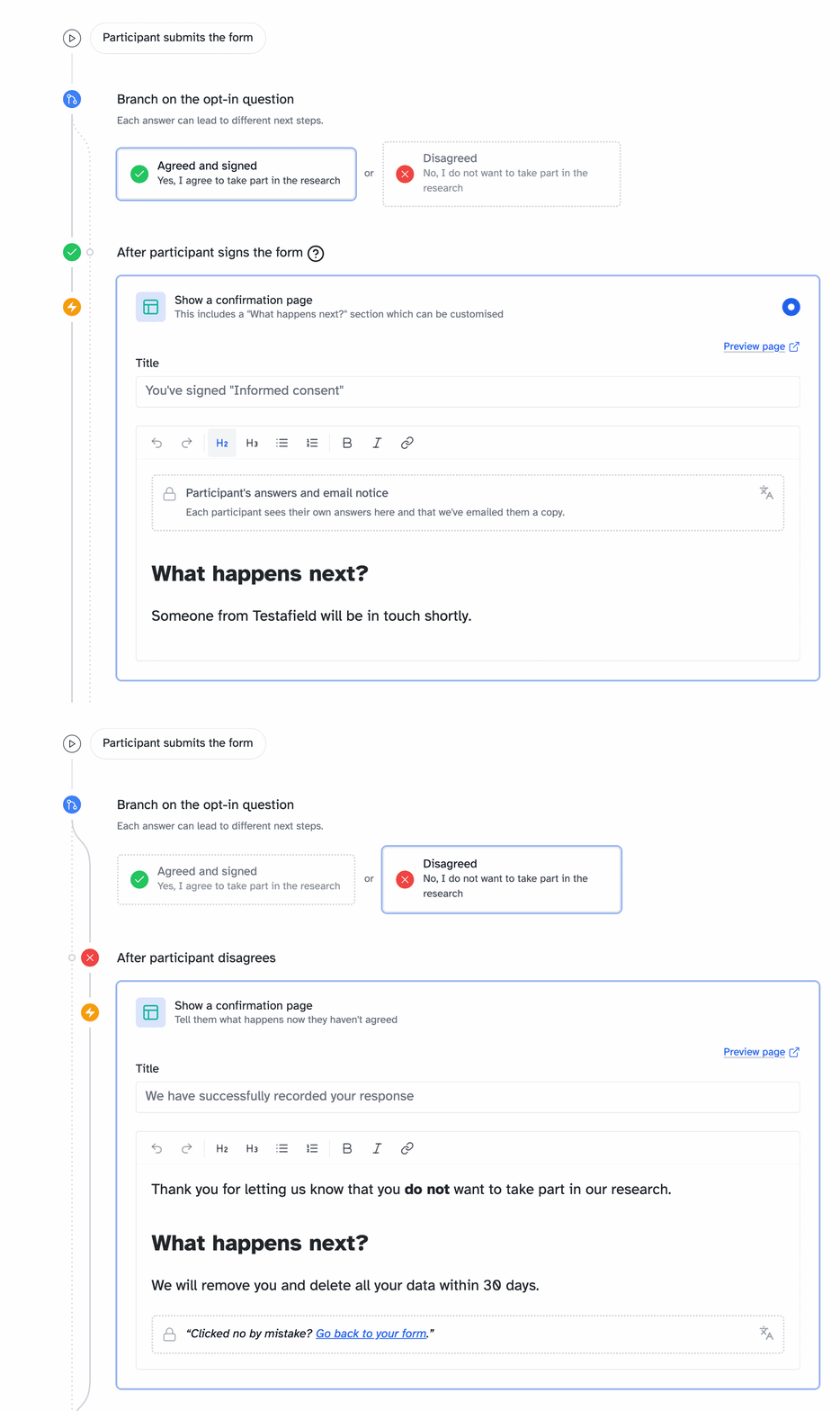
Write your own confirmation pages
Your consent form doesn’t stop at the submit button
A good informed consent form explains what someone is agreeing to. Until now, the confirmation page was fixed text you couldn’t change.
Now that page is yours. Say what happens next, when they’ll hear from you and who to contact with questions. Write it in your form’s language, just like the form itself. If you’ve written your form in Spanish, you can now write everything in Spanish.
Saying no is part of consent too
Not many people say no. When someone does, your refusal page should make it clear what they’ve chosen. Now you can write it.
If they said no by mistake, tell them how to put it right. The link back to the form is always there.
If they meant it, that’s fine. Thank them and tell them what you’ll do with their data.
Free consent form review. Want a second pair of eyes on your consent form? I’ll put some time aside and go through it from start to finish, including the pages people see after they submit. Then I’ll suggest where it could be better. Free, whether or not you use Participant Kit. Send it over
The parts that stay
Some parts of each page have to be there, so we keep them in place:
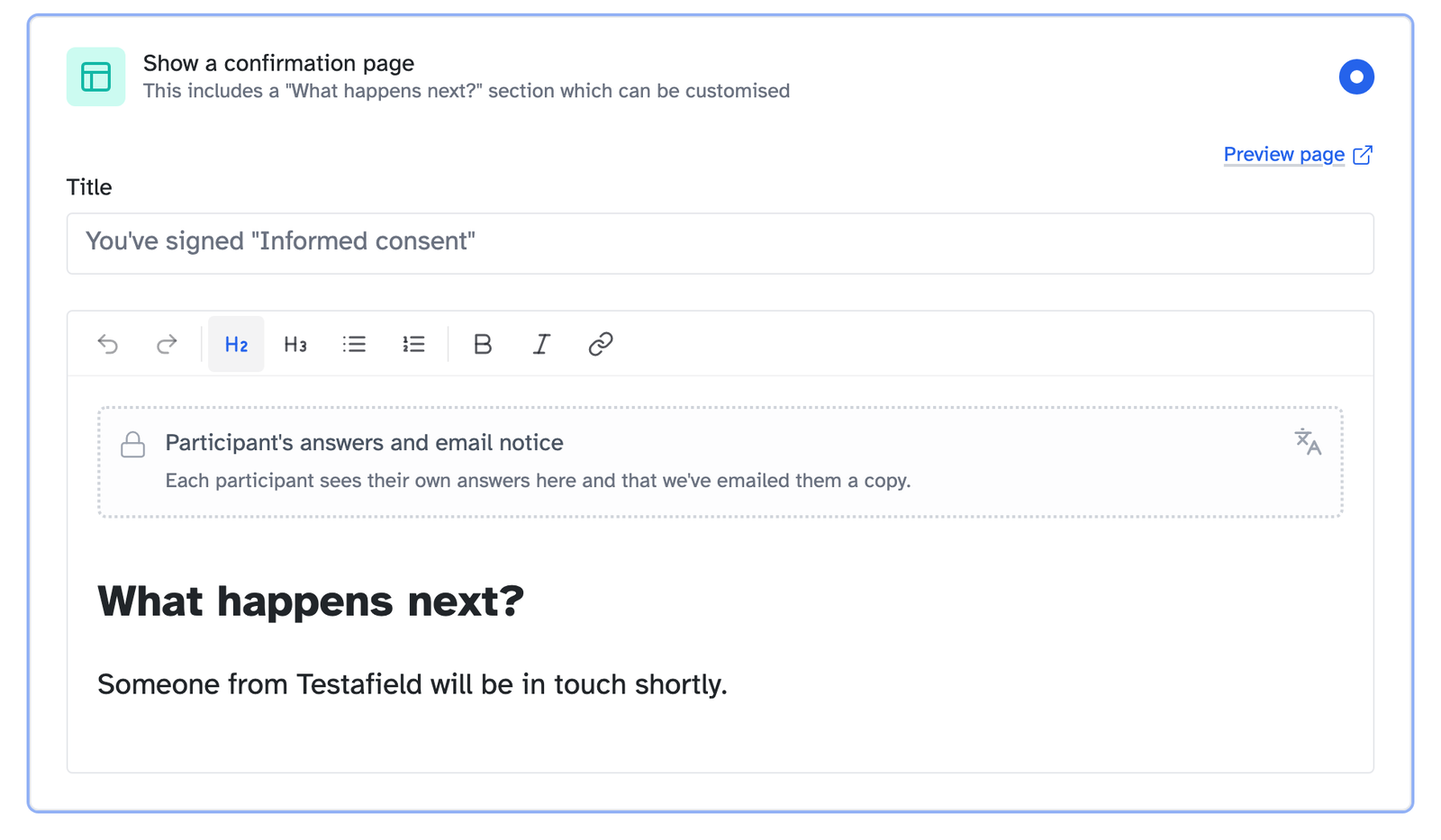
- When someone agrees, a summary block gives them a record of what they agreed to and tells them a copy is in their inbox
- When someone says no, a fixed link at the end gives them a way to change their mind
You can write above and below them. You can’t remove them. In the editor, they show as locked blocks.
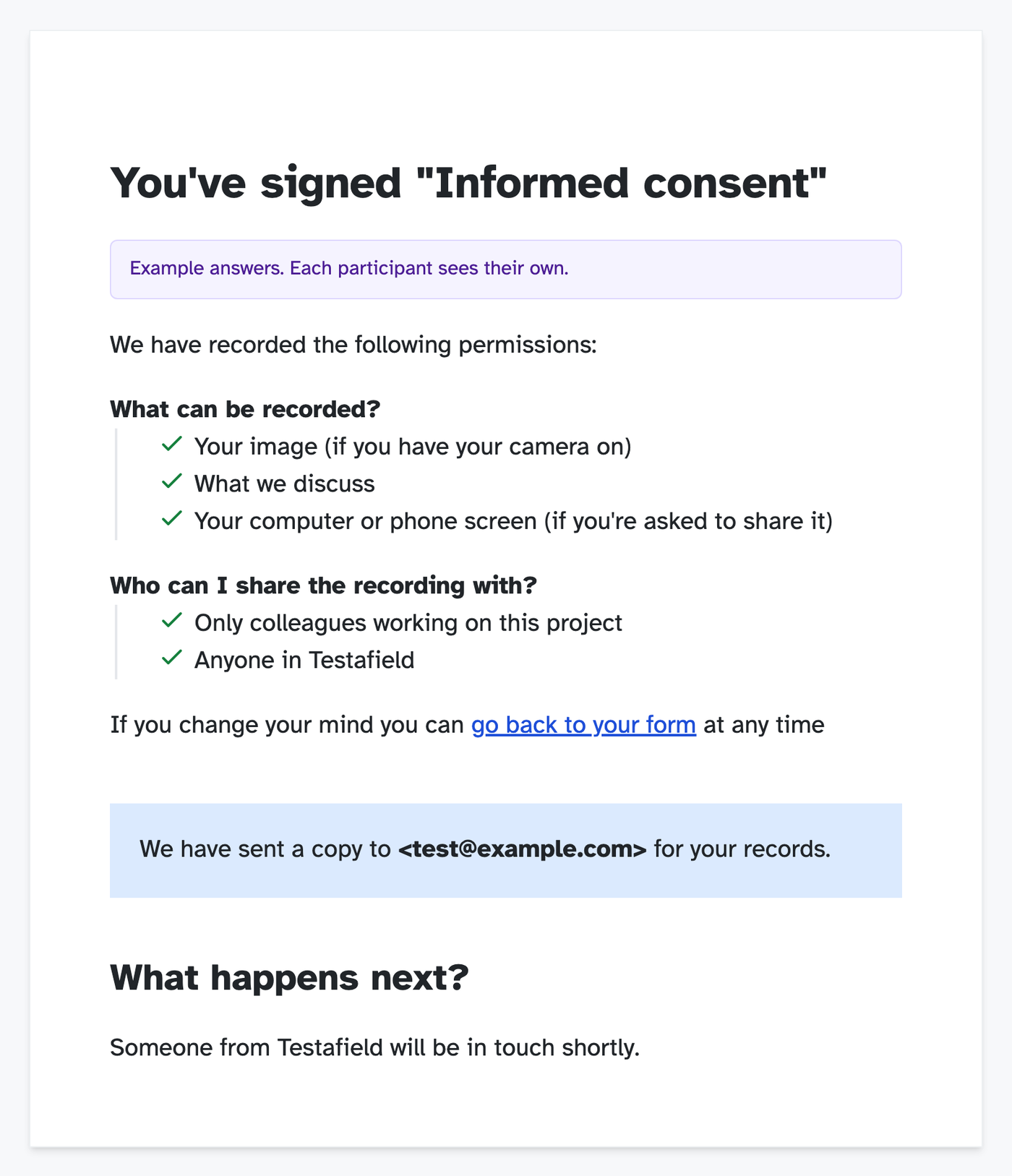
Preview every page
Click Preview page to see exactly what participants will see.
Screeners and panel sign-up forms got a polish too. Their thank-you pages use the same editor, with the same preview.
For more ways to use the Workflows tab, from booking a session to working with a recruiter, read Ways to use form workflows.
Write your pages
Open a consent form or agreement and click the Workflows tab.
- Under Agreed and signed, choose Show a confirmation page and write it
- Click Disagreed and write the page for people who say no
- Click Preview page to check each one
The help article has the full steps, including redirects and Calendly.
A new editor, starting here
The pages you write this week are the first to use our new text editor. It’s cleaner than the old one and should feel familiar if you’ve written anything in a modern app.
Adding a link is simpler. You can also choose whether a link opens in a new tab.
It’s coming to the other places you write in Participant Kit.
