
Choose what happens after someone agrees to your form
When someone agrees to your consent form or agreement, you choose what happens next. You can show them a confirmation page that you write. You can also let them book a time or send them to another website.
You set this on the form’s Workflows tab. Each form has its own settings.
Who can use this
Organisation admins and members who have access to the study’s project.
How the workflow works
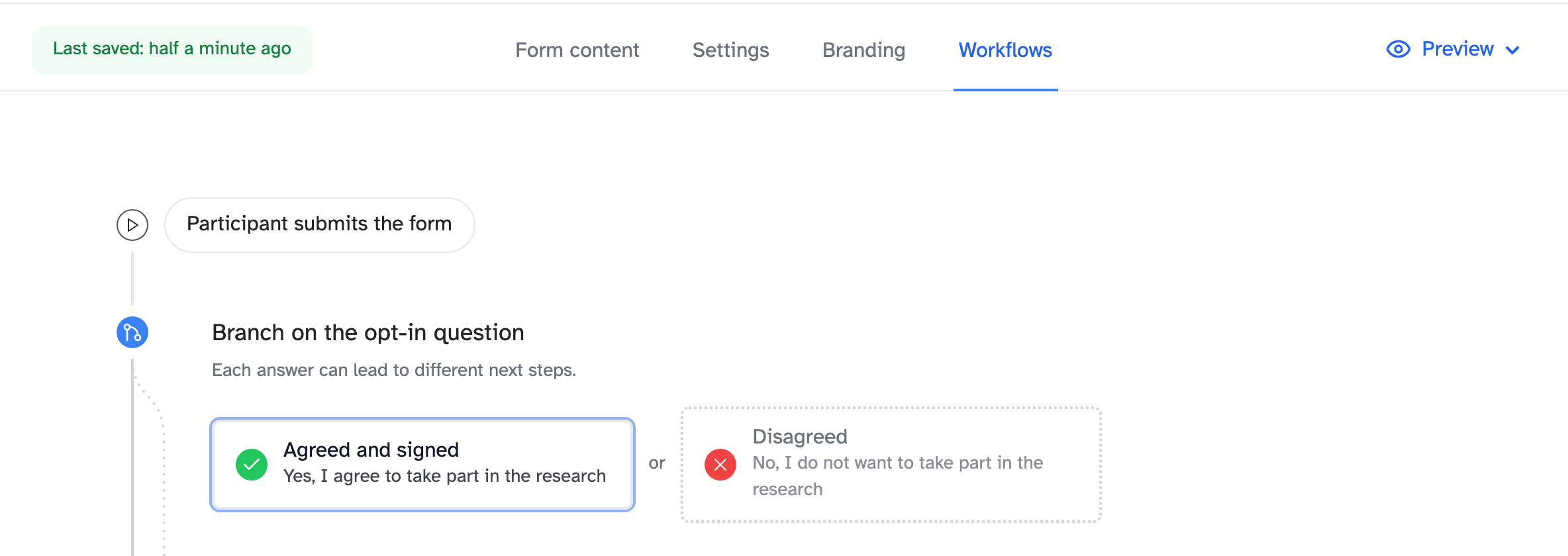
The Workflows tab shows what happens after a participant submits the form. It splits in two, based on how they answered the opt-in question:
- Agreed and signed: they agreed to take part
- Disagreed: they didn’t agree to take part
This article covers Agreed and signed. To write the page people see when they don’t agree, read Write the page people see when they don’t agree.
1. Open the workflow
- Open the study, then open your consent form or agreement.
- Click the Workflows tab.
2. Choose what happens next
Under After participant signs the form, click the option you want.
- Show a confirmation page: a page you write, below a summary of what they agreed to. This is the default.
- Let them book a time with your team: they book a session from your team’s calendar. You only see this if your organisation uses bookings in Participant Kit.
- Redirect to a custom URL: send them to another website, such as an unmoderated study or your own thank-you page.
- Schedule with Calendly: send them to Calendly or show your confirmation page with a button to book in Calendly.
Changes save as you make them. Participants see them straight away.
3. Write the confirmation page
If you chose Show a confirmation page:
- In Title, type the page’s title. If you leave it blank, participants see a default title.
- In Page content, write what you want participants to read. For example, when you’ll be in touch and how to get ready for the session.
- Click Preview page to see it as participants will.
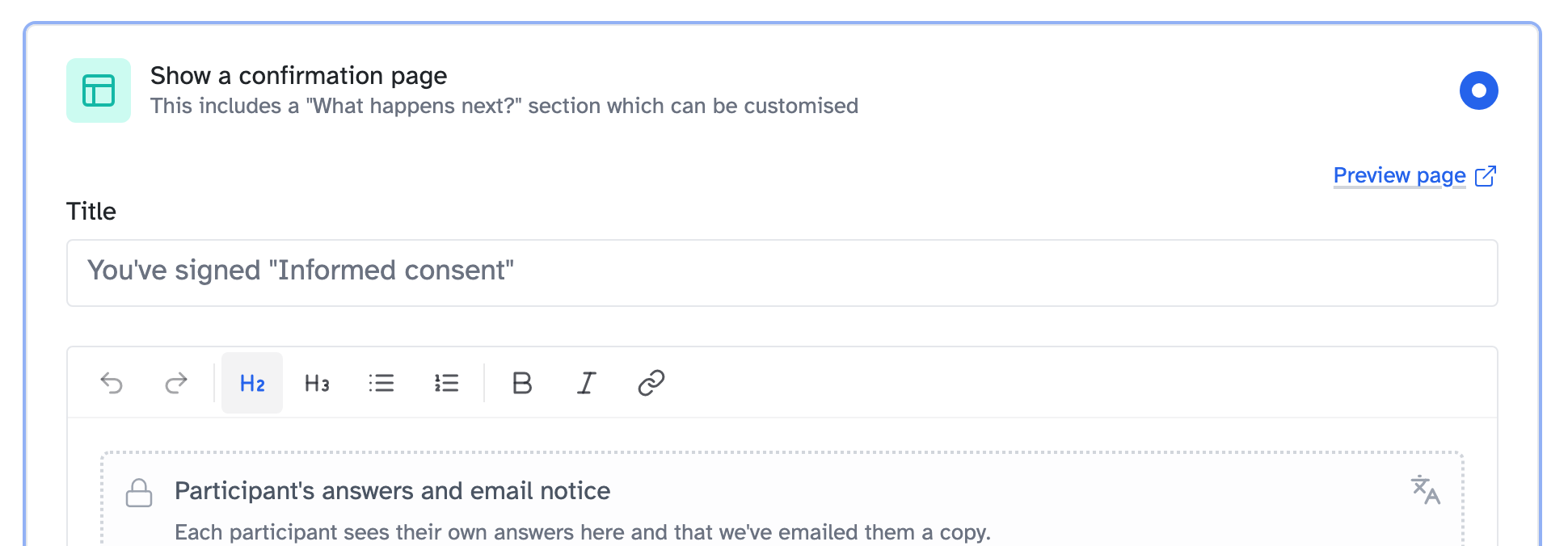
The summary at the top of the page is fixed content. It shows each participant their own answers and tells them you’ve emailed them a copy. You can write above and below it, but you can’t remove it.
Until you change the page content, participants see the default text.
To format the page, read Format text in Participant Kit.
4. Or set up a redirect or Calendly
If you chose Redirect to a custom URL, enter the address in URL. You can personalise it with and, for example to pass the person’s email to an unmoderated testing tool.
If you chose Schedule with Calendly, pick the event in Using which Calendly event? Then choose how participants book in How should participants book?:
- Redirect to Calendly
- Show a confirmation page with a button to schedule a time
With the second choice, you write the confirmation page as in step 3.
If you switch to an option without a confirmation page, the page you wrote is kept but not shown.
When participants see it
If you send the form in an email from Participant Kit, participants see your page straight after they submit.
If you share the form’s link directly, they verify their email address first. They see Check your inbox and click a link in an email. Your page, redirect or booking page comes after that.
If they come back later from the link in their confirmation email, they see your confirmation page there too.
Key takeaways
💡 Remember: Each consent form and agreement has its own workflow. Set it on the form’s Workflows tab.
🧪 Try: Click Preview page after you write your page. The preview uses example answers.
⚠️ Watch for: If you share the form’s link directly, participants verify their email address before they see your page or redirect.
⚡ Quick tip: If people book a session, tell them how to get ready for it.