
Write the page people see when they don’t agree
When someone doesn’t agree to your consent form or agreement, they see a page that thanks them and tells them what happens next. You can change what it says, for example to match how your team handles people who don’t take part.
Who can use this
Organisation admins and members who have access to the study’s project.
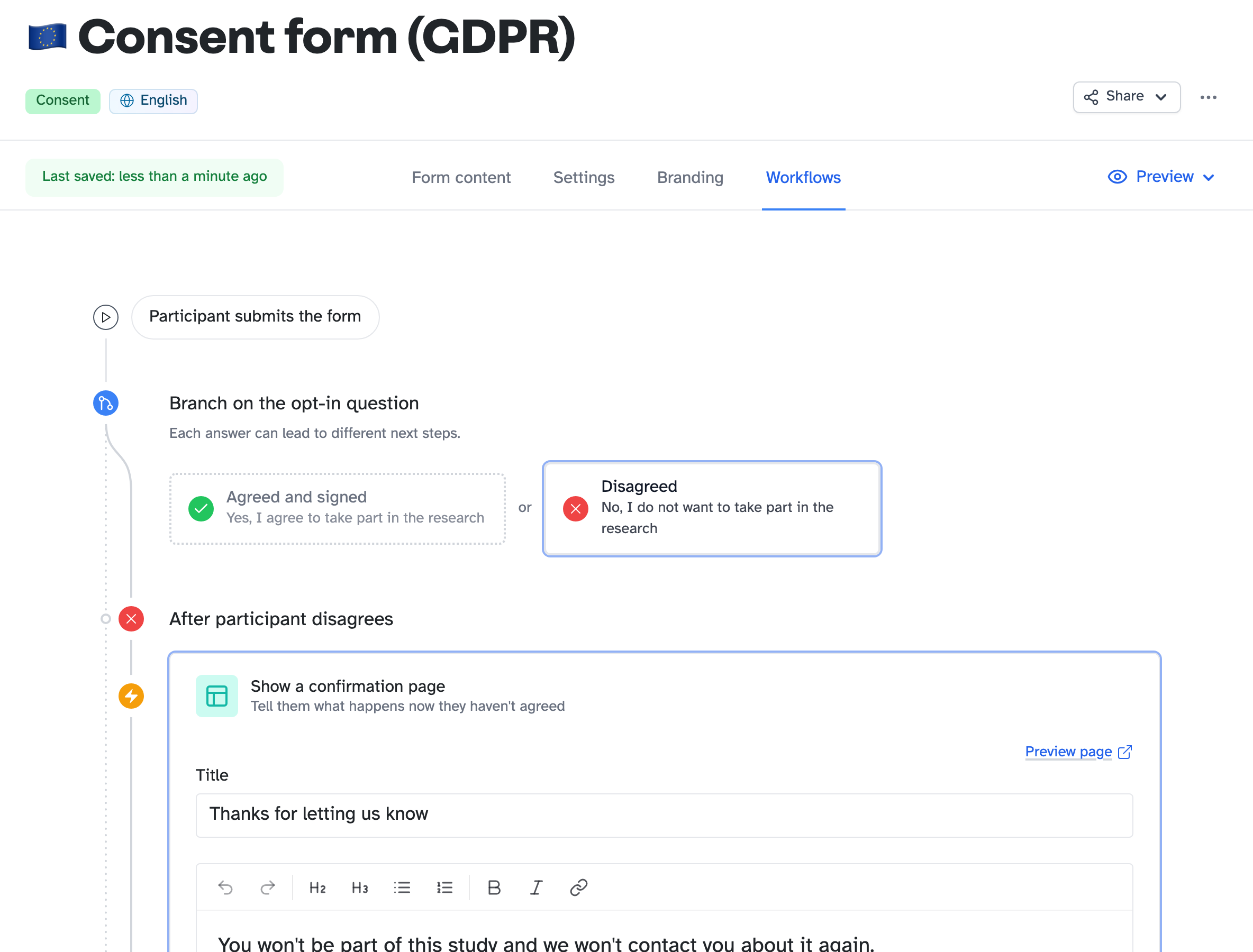
1. Open the Disagreed route
- Open the study, then open your consent form or agreement.
- Click the Workflows tab.
- Click Disagreed.
People who don’t agree always see a page. You can’t redirect them.
2. Write the page
- In Title, type the page’s title. If you leave it blank, participants see a default title.
- In Page content, change the text.
- Click Preview page to see it as participants will.
Changes save as you make them. Participants see them straight away.
The link back to the form at the end of the page is fixed content. It lets people change their answer, so you can’t remove it.
Until you change the page content, participants see the default text.
To format the page, read Format text in Participant Kit.
What participants see
People see your page in one of two ways:
- straight after they submit the form without agreeing, which is the usual way
- if they agree, then change their mind later, which rarely happens: they go back to the form from the link in their confirmation email and change their answer
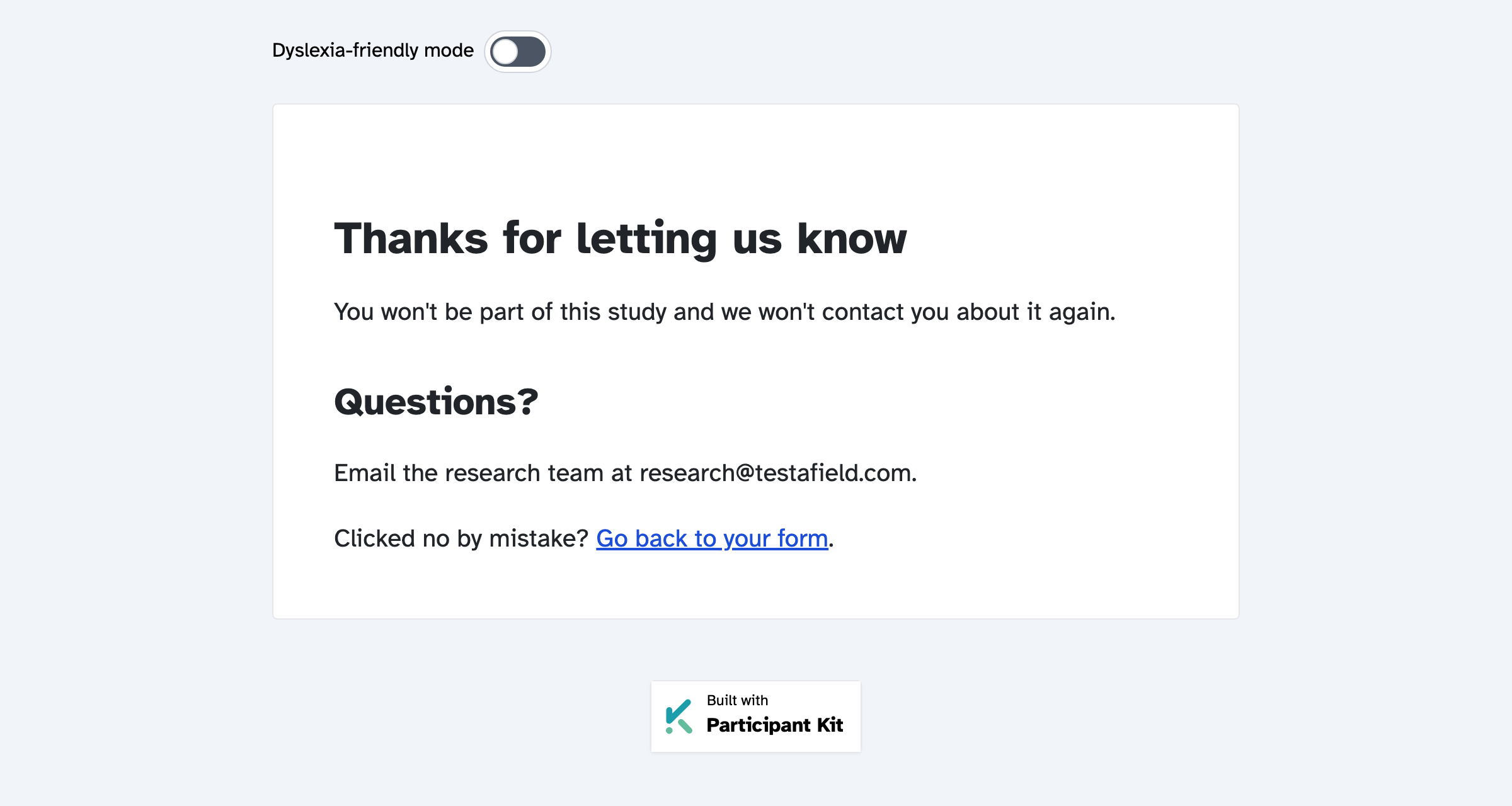
If they don’t agree on the form, they don’t get a confirmation email. In your study’s participant list, their consent form shows as refused.
If your form sends people to an exit page before they submit, for example with branching, they don’t see this page. They never submit the form, so nothing is recorded.
Key takeaways
💡 Remember: This page is part of the form’s workflow. Each form has its own.
🧪 Try: Preview the page after you change it.
⚠️ Watch for: Make sure the page says what your team actually does with people’s data.
⚡ Quick tip: Tell people who to contact if they have questions.