
Moving questions and fixing branching warnings
Use this when you want to move a question to a different page of a form, or when the form builder shows a warning on a branching rule.
The form builder checks your branching rules as you work. If a rule can’t do what it says, for example because the question it uses has moved or been deleted, it tells you what’s wrong and how to fix it.
Who can use this
Anyone who can edit the form.
Move a question to another page
- Click the question to select it.
- Click the … button at the bottom right of the question.
-
Click Move to….
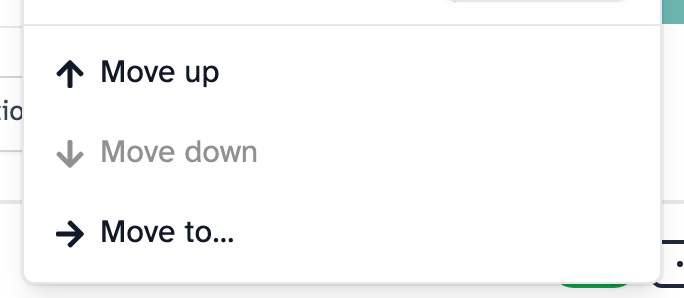
- Click the page you want to move it to. The list shows the form’s other pages, not the one the question is on now.
The question moves to the bottom of that page, and a message confirms where it went. Click Go to page to see it there. To change where it sits on the page, use Move up or Move down in the same … menu.
To undo a move, move the question back the same way.
Move to… only appears when your form has more than one page.
You can’t move questions on a locked form. Consent forms and NDAs lock once they’ve been sent out, because changing them would invalidate the e-signatures people have given.
Moves that would break a branching rule
Some moves would stop a branching rule working. For example, a rule on page 1 can’t use a question that’s on page 2, because people reach the rule before they see the question.
In the list of pages to move to, a warning triangle next to a page means moving the question there would break a rule.
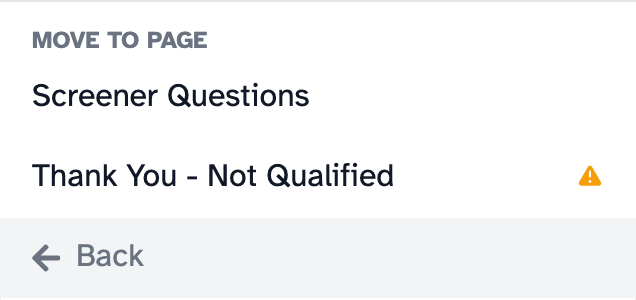
If you click one of those pages, the builder tells you which page’s branching will stop working. That’s the page the rule is on, which isn’t always the page you clicked. Click Move anyway to move the question, or Back to choose again.
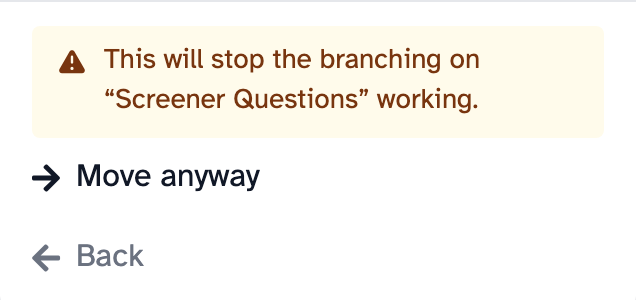
Moving a question never deletes a rule. The rule stays where it is, with a warning, until you fix it.
When the builder warns you
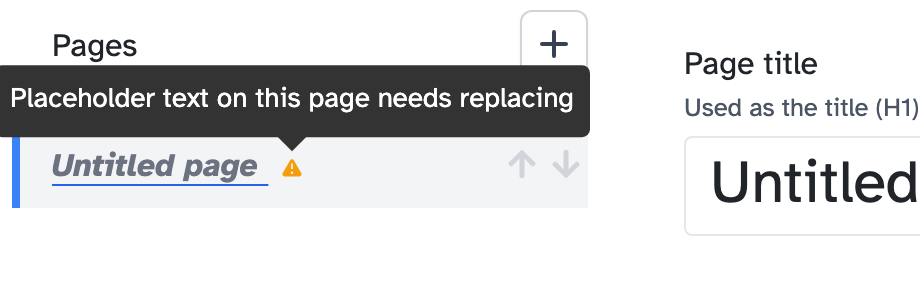
In the list of pages on the left of the builder, a warning triangle next to a page means a rule on that page needs fixing.
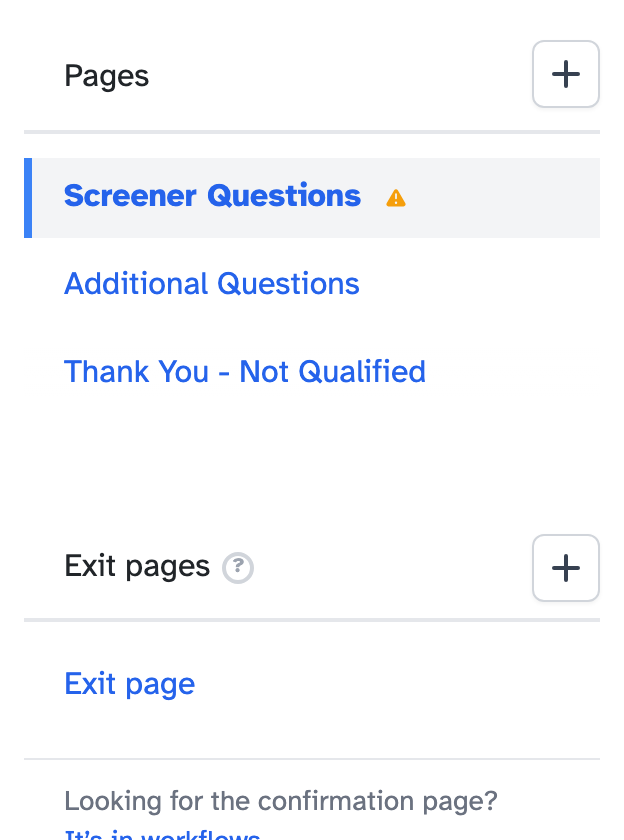
Open the page and scroll to its branching rules, under After this page is completed. The rule that needs fixing has a message above it saying what’s wrong and what to do.
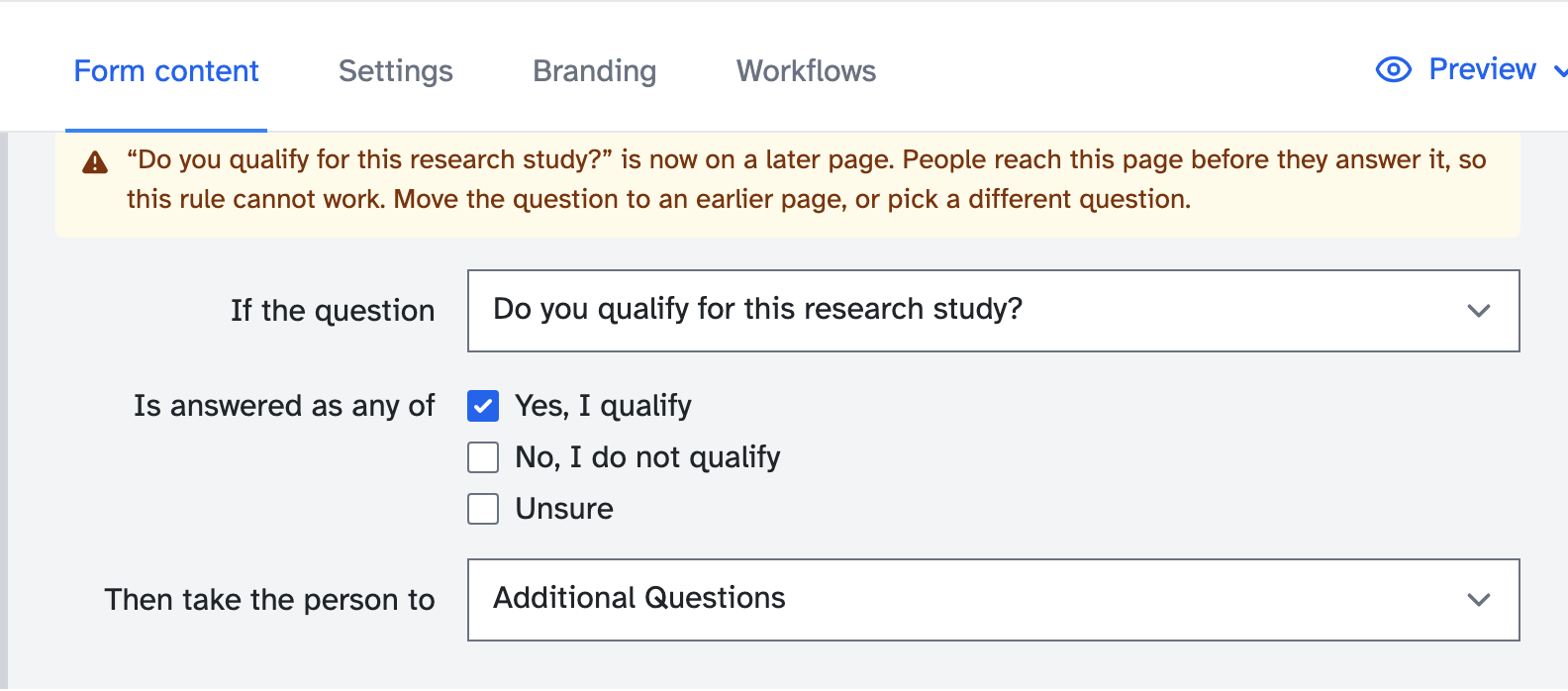
What each warning means, and how to fix it:
- The question is now on a later page. People reach the rule before they answer the question. Move the question back to an earlier page, or pick a different question.
- The question has been deleted. The form skips the rule. Pick a different question, or delete the rule.
- None of the answers the rule looks for exist any more. Someone removed them from the question, so the rule can never match anyone. Tick one of the question’s current answers, or delete the rule.
- The rule sends people to a page that has been deleted. People carry on to the next page instead. Pick a different page to send them to.
- The rule sends people back to an earlier page. That would take them round in a circle, so the form stops early and they can’t finish it. Pick a later page, or delete the rule.
Warnings don’t stop you saving the form. If the form has already been sent out, fix the rule as soon as you can, because it affects everyone filling the form in from now on.
Placeholder text
Placeholder text is wording that’s there to be replaced, like the name of your organisation. New forms and templates often start with some. In the builder it shows in red, in square brackets.
![A content block with [Organisation] and [website] in red](/assets/images/help/placeholder/block-editing.png)
People filling in the form don’t see the brackets or the red, so placeholder text you forget to replace looks like real wording. Here’s what they would see for the block above:

How the builder shows it
A page with placeholder text on it has a warning triangle next to it in the list of pages. Hover over it to see “Placeholder text on this page needs replacing”.
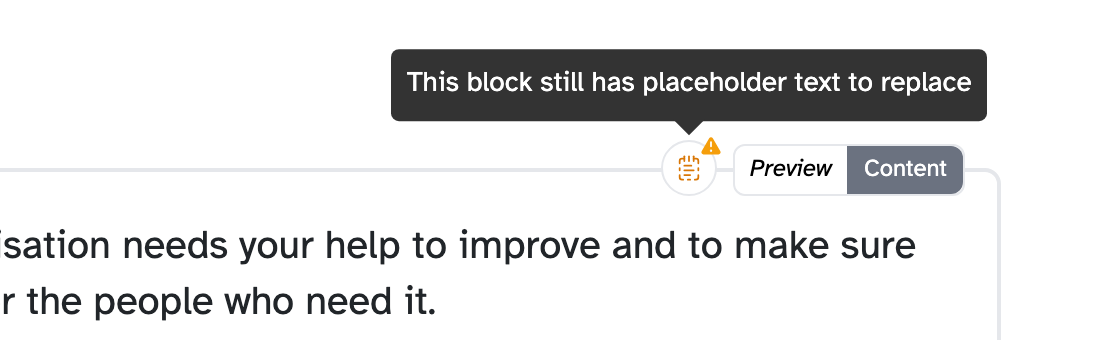
On the page, a block with placeholder text in it has a small orange icon at its top right. Hover over it to see “This block still has placeholder text to replace”.
Replace it
Typing over placeholder text keeps it marked as a placeholder, so it stays red and the warning stays. Turn it into normal text first:
- Click the block to open it.
- Select the red text.
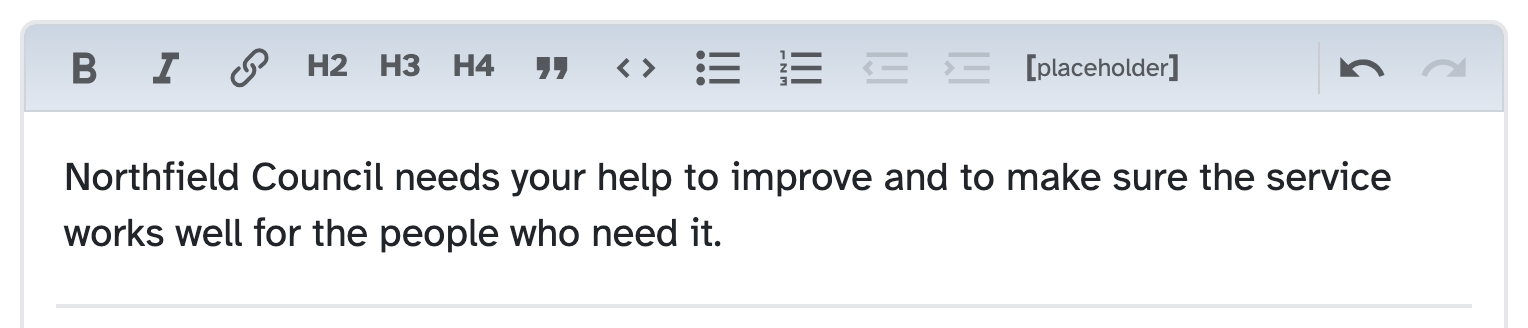
- Click [placeholder] in the toolbar. The text turns black.
- Type your own wording.
![The word website selected in red, with the [placeholder] button in the toolbar](/assets/images/help/placeholder/selected.png)
When there’s no placeholder text left on a page, its warning goes.
You can use [placeholder] the other way too, to mark text in a template that whoever uses it should change.
Templates and locked forms don’t show placeholder warnings.
Key takeaways
💡 Remember: Moving a question never deletes a branching rule. The rule stays, with a warning, until you fix it.
🧪 Try: Use Move to… to restructure a form, instead of deleting a question and building it again.
⚠️ Watch for: A warning triangle in the list of pages. It means a rule on that page needs fixing.
⚡ Quick tip: The warning on a rule tells you how to fix it. Read it before you change anything.