
Tracking incentives in a study
Use this to keep a record of who you’ve paid for taking part in a study, when and how much.
Recording an incentive doesn’t send anyone money or email them. You pay people the way you do now, for example by bank transfer or voucher. Then you record it in Participant Kit.
Who can use this
Organisation admins and members.
1. Record an incentive
- Open the study and go to the Participants tab.
-
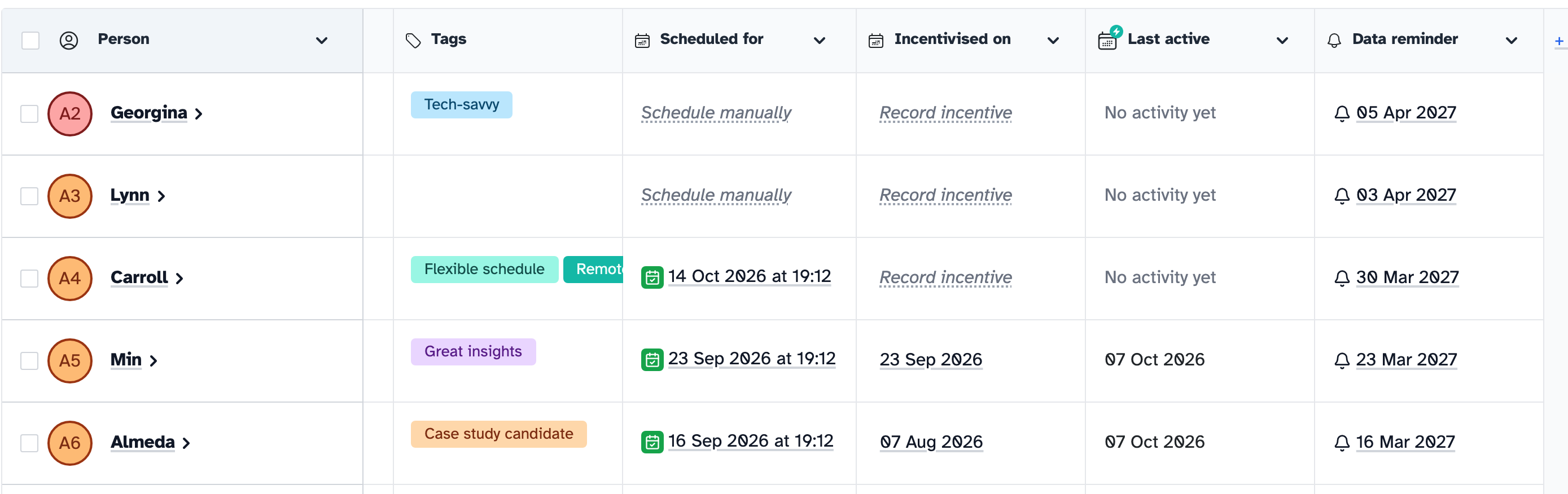
In the person’s row, click Record incentive in the Incentivised on column. You may need to scroll the table to the right to see it.
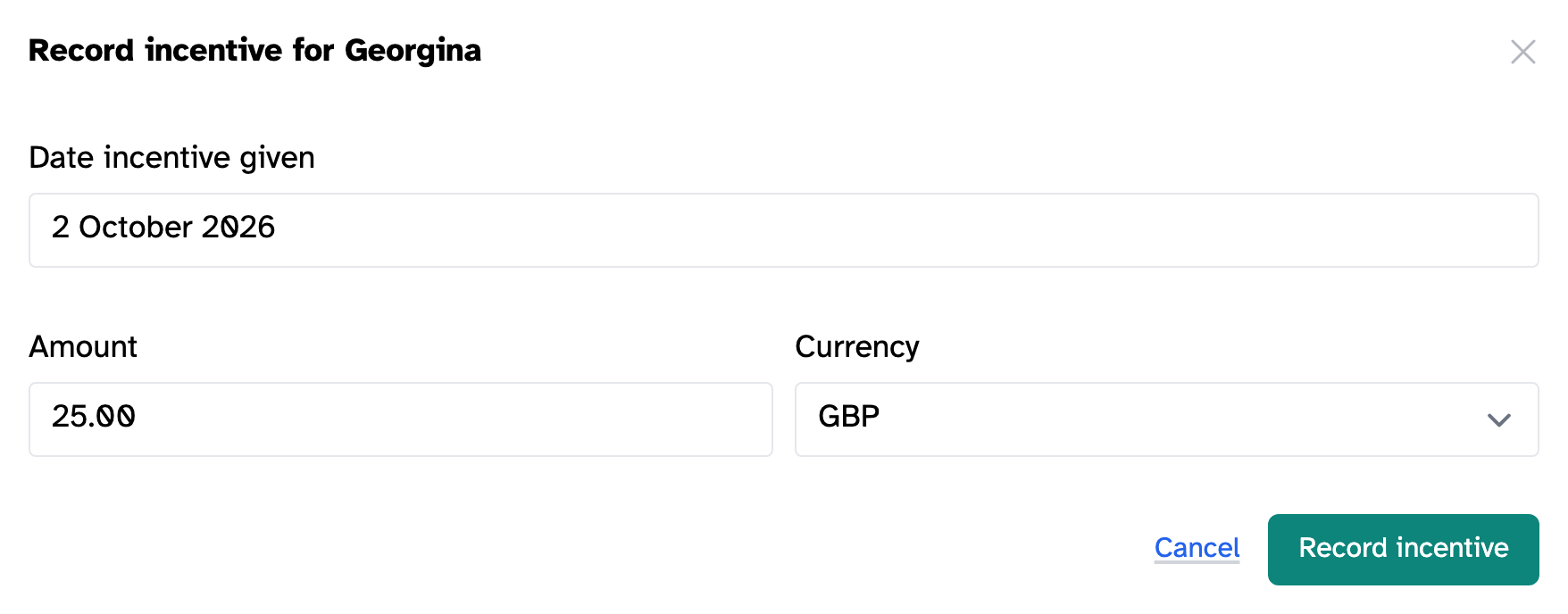
- In Date incentive given, choose the date you paid them, even if that was a while ago.
- Fill in the Amount and choose the Currency. These are optional, but the totals on the study’s Incentives tab only include incentives with an amount.
- Click Record incentive.
The date you chose now shows in the Incentivised on column.
The amount and currency are filled in for you from the last incentive anyone recorded in that study. If you pay people different amounts, check them before you click Record incentive.
You record incentives one person at a time. Each person can have one incentive in each study. The currencies you can choose are GBP, EUR, USD and CAD.
2. Change or delete an incentive
- In the Incentivised on column, click the date.
- Change the date, amount or currency, then click Save.
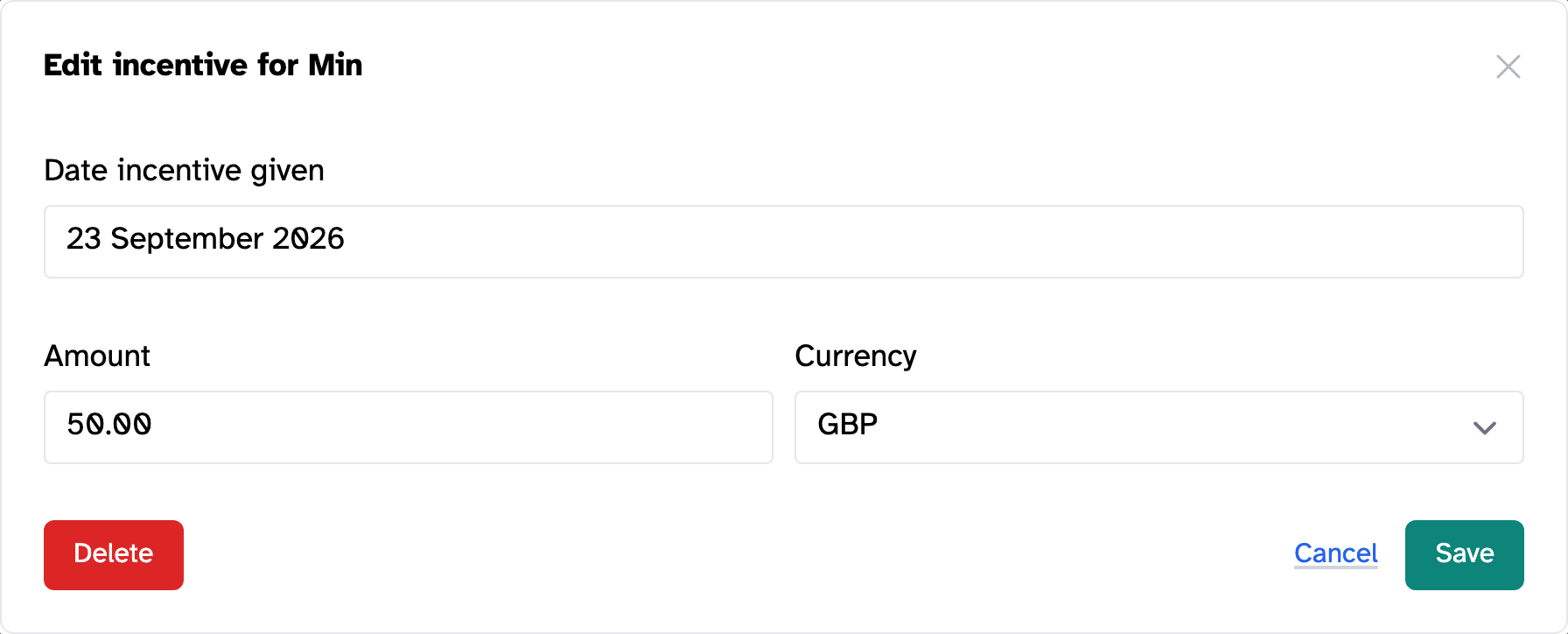
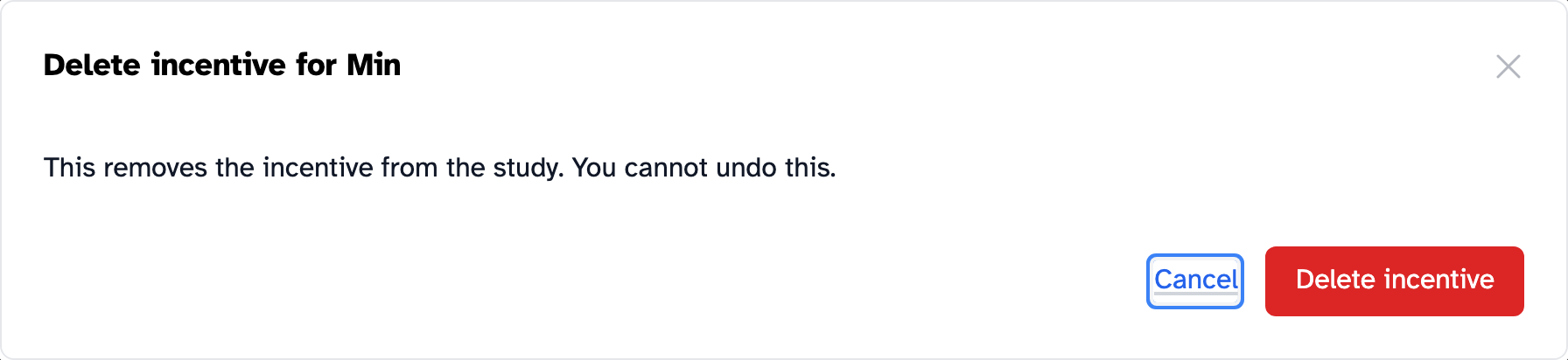
To delete the incentive, click Delete instead, then Delete incentive to confirm. You can’t undo this. It also removes the incentive from the person’s activity.
3. See what you’ve paid in a study
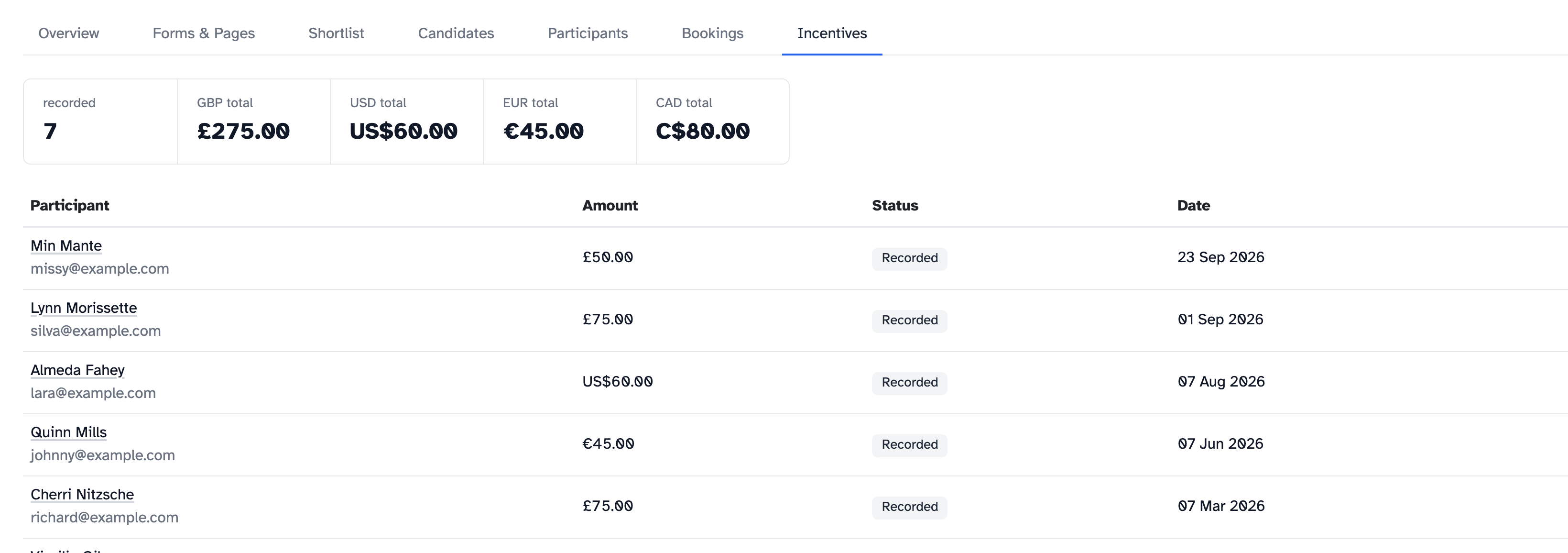
Go to the study’s Incentives tab. It shows how many incentives have been recorded, a total for each currency and everyone you’ve recorded an incentive for, with the amount and date.
Organisation admins can see incentives across every study in the incentives report.
4. Find who still needs paying
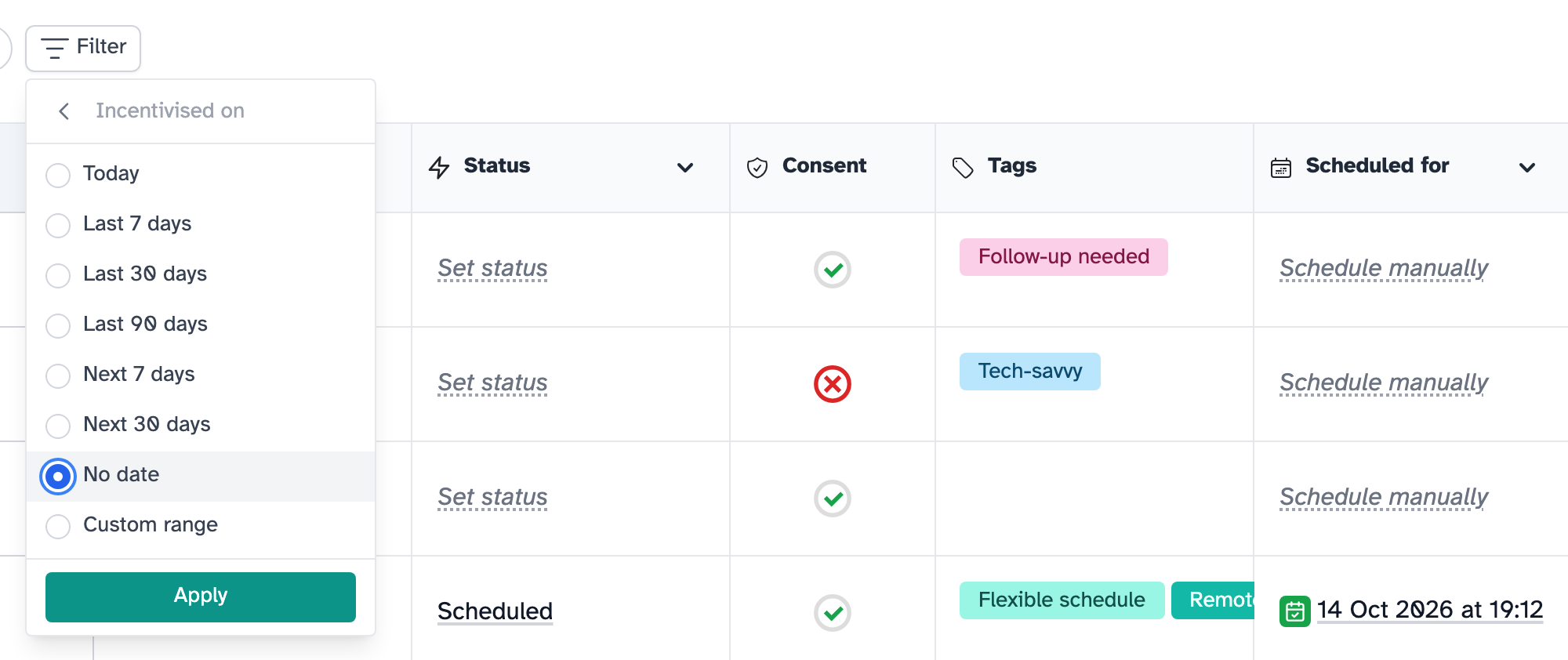
On the Participants tab, click Filter, choose Incentivised on, choose No date, then click Apply. The table shows everyone in the study with no incentive recorded.
What recording an incentive updates
Recording an incentive changes these dates, all using the date you chose in Date incentive given:
- Incentivised on, in the study
- Last incentivised, on the person, if it’s their most recent incentive in any study
- Last active, in the study and on the person, if it’s the most recent thing they’ve done
If you change the date or delete the incentive, these dates change to match.
The person’s activity shows the incentive, with the amount, currency and the date it was given.
To see the difference between these dates, read What the smart fields mean.
Key takeaways
💡 Remember: Recording an incentive keeps a record. It doesn’t pay anyone.
🧪 Try: Record a batch of past payments with the dates you paid them.
⚠️ Watch for: The amount and currency are filled in from the last incentive in the study. Check them if people were paid different amounts.
⚡ Quick tip: Filter on Incentivised on, then No date, to find who you still need to pay.