
Asking for someone’s name on a form
Use this to choose how your form asks people for their name. You can keep a single box for their whole name, or ask for their first and last name separately. You can also ask what they like to be called, so emails greet them the way they prefer.
Who can use this
Anyone who can edit the form. Changing an organisation template needs an organisation admin.
1. Open the name question’s settings
- Open the form and go to the Form content tab.
- Click the name question.
- Click the cog button at the bottom right of the question, next to ….
2. Choose one question or two
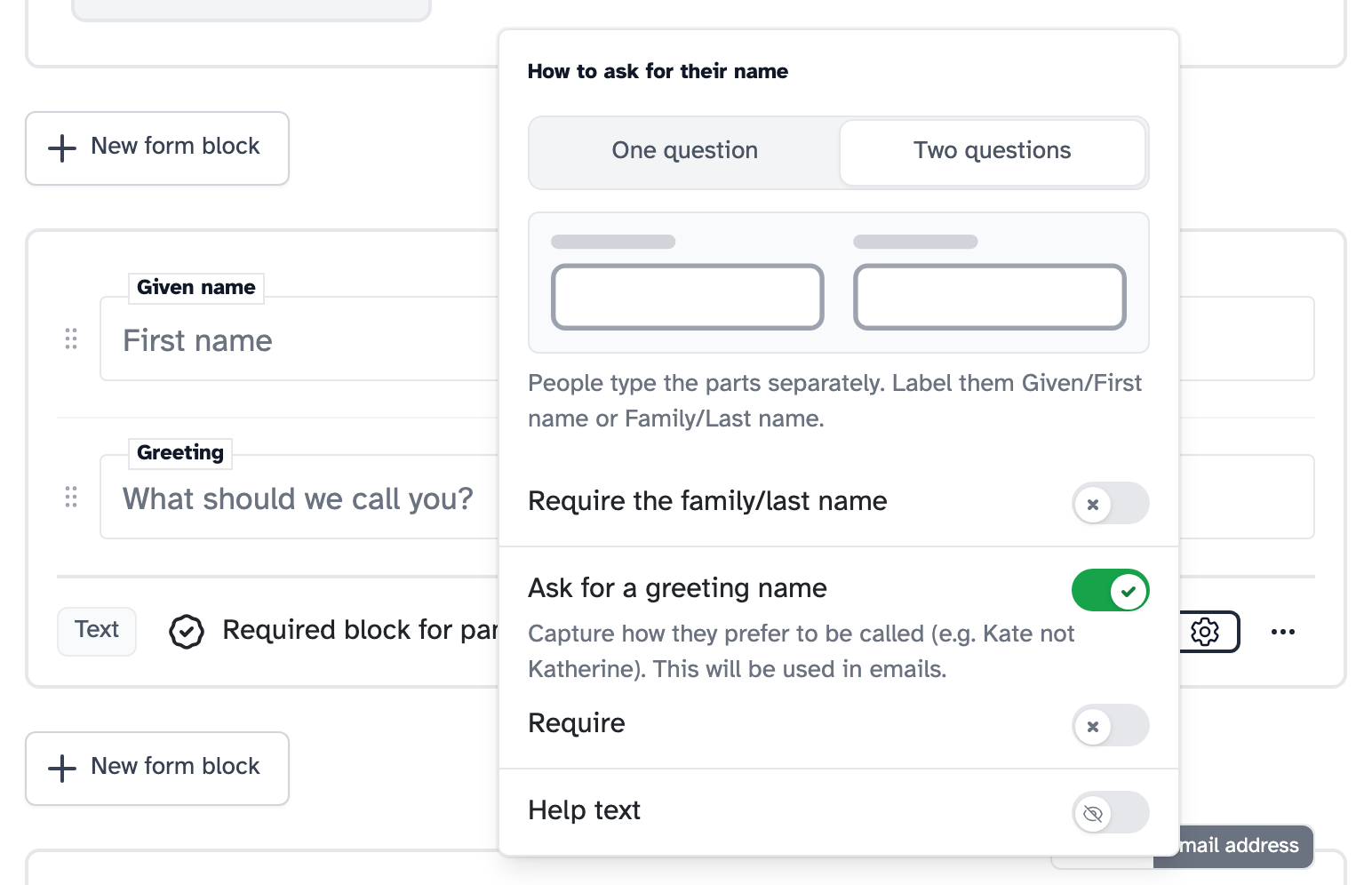
Under How to ask for their name:
- One question gives people one box for their whole name. This suits every name, whatever its format. It’s the default.
- Two questions gives people a box for their first name and a box for their last name.
Switching doesn’t change the names you already have. It only changes how the form asks from now on.
With Two questions, the last name is optional, so people with only one name can still fill in the form. To make it required, switch on Require the family/last name.
If your form already has its own first name question, delete it when you switch to Two questions. Otherwise people are asked for their first name twice.
3. Ask what they like to be called
Switch on Ask for a greeting name to add a box asking what people like to be called, for example Kate rather than Katherine. It’s optional unless you also switch on Require.
Emails Participant Kit sends for you, like consent and booking confirmations, greet people by this name.
Using the greeting name in your own emails
Your own emails only greet people by their greeting name if you add the greeting name tag. When you write an email, add it from the personalisation menu. The tag has a slightly different name depending on where you’re writing:
- a message to study participants, or an email template: Participant greeting name
- a message from a shortlist: Recipient greeting name
- a broadcast to your panel: Greeting name
- your panel’s sign-up confirmation email: Panellist greeting name
If someone hasn’t given a greeting name, the tag uses their first name. If you only asked for their whole name, it uses the first word of it.
4. Change the wording
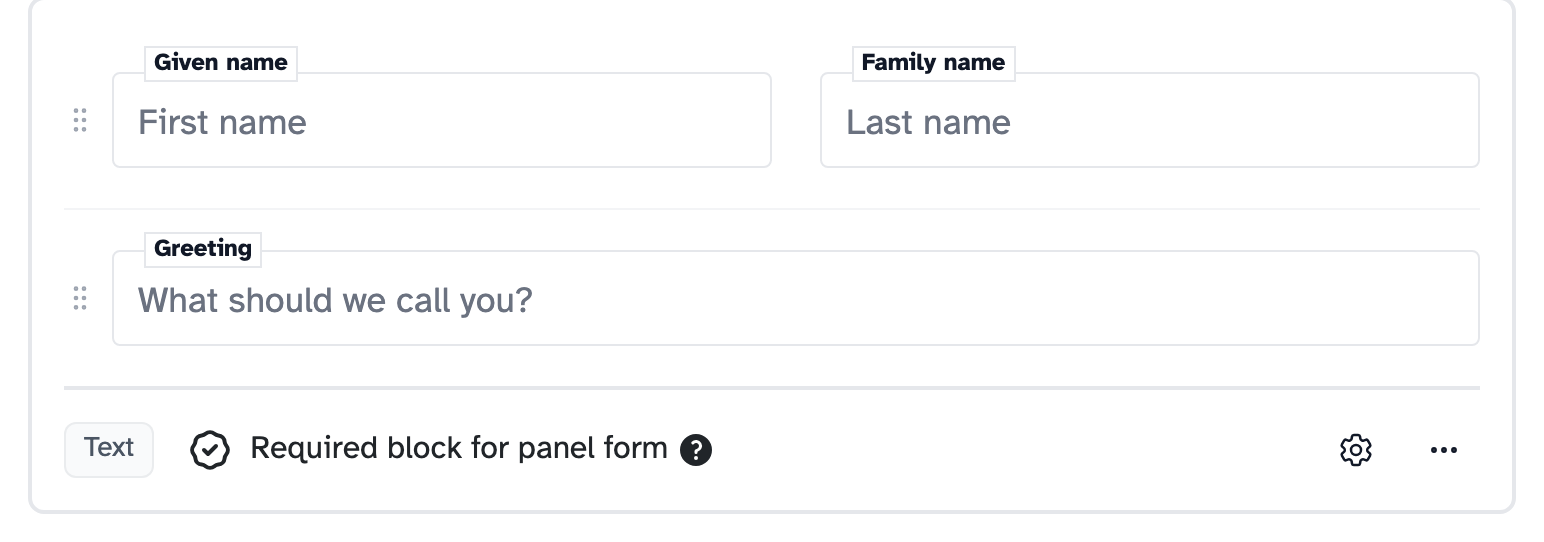
In the builder, the boxes are called Given name, Family name and Greeting. Type in a box to change the label people see. If you leave it blank, they see the standard label:
- Given name shows as “First name”
- Family name shows as “Last name”
- Greeting shows as “What should we call you?”
To ask for the greeting name before the name, drag the Greeting row above the name boxes.
What people see on the form
With Two questions and a greeting name, people see the first and last name boxes side by side, then the greeting box. Any box that isn’t required says “(optional)”.
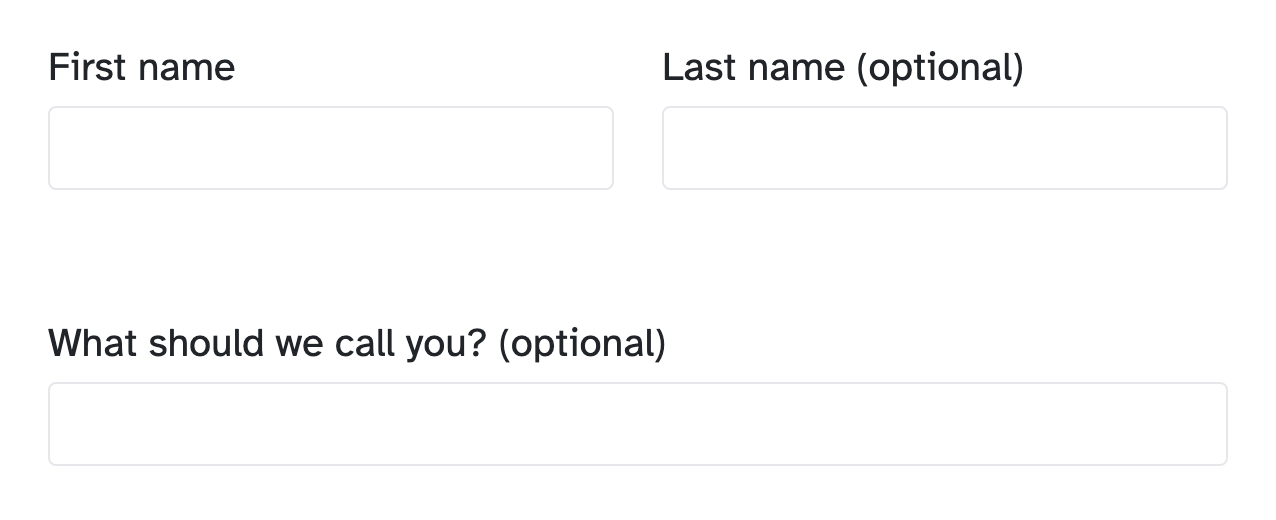
If someone leaves a required box empty, the form asks them to fill it in, for example “Enter first name”.
Forms you already have
Forms you made before these settings existed have them too. They start on One question with no greeting name, so nothing changes for people filling them in until you change it.
A new form made from a template copies the template’s name settings.
Editing a person’s name
Who can use this
Organisation admins.
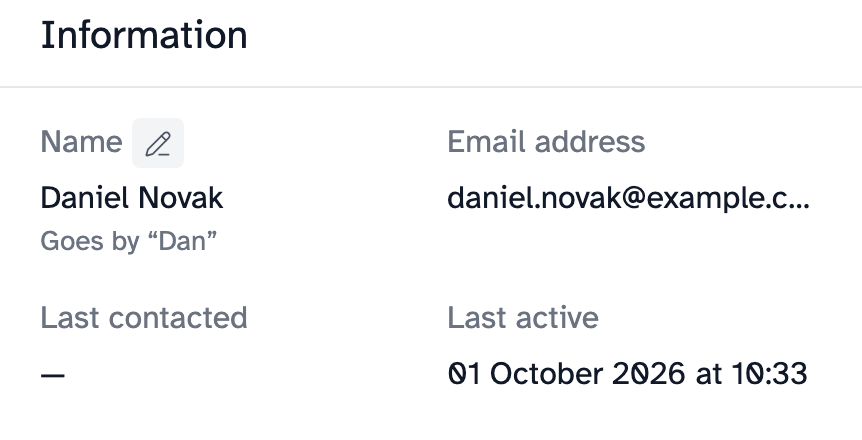
On a person’s profile, click the edit button next to Name. Click Split into first and last to edit their first and last name separately, or Edit as one name to go back to a single box.
Add what they like to be called in Goes by.
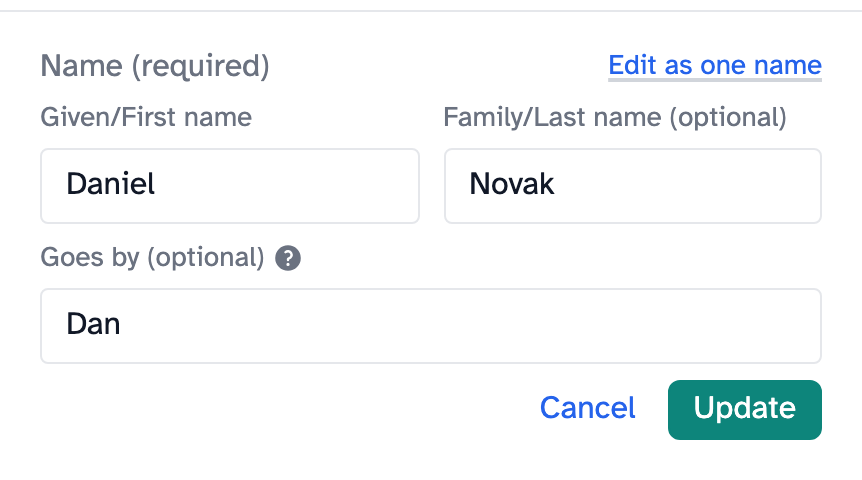
Their profile then shows what they go by under their name.
People you import from a file come in with their name in one box, with no first name, last name or greeting name. You can add these on their profile.
Key takeaways
💡 Remember: One question suits every name. Choose two questions when you need first and last names separately.
🧪 Try: Ask for a greeting name on your sign-up form, so emails use the name people actually go by.
⚠️ Watch for: A form that already has its own first name question. Delete it when you switch to two questions.
⚡ Quick tip: The last name is optional by default, so people with only one name can still fill in the form.