
Format text in Participant Kit
Use this editor to write the pages people see after they submit a form, on the form’s Workflows tab:
- the confirmation page after someone agrees to a consent form or agreement
- the page people see when they don’t agree
- thank-you pages for study screeners, panel sign-up forms and panel screeners
The toolbar

Use the toolbar above your text to add headings, lists, bold and italic text and links.
Add a link
- Select the text you want to link.
- Click Link
 in the toolbar.
 - Paste the address and press Enter
 .
.
Links open in the same tab. To open one in a new tab, switch on the switch next to the new tab icon  , before you press Enter.
To remove a link, click it, then click the bin icon  .
.
On confirmation and thank-you pages
Fixed content
Some pages have fixed content that participants need, such as the summary of their answers or the link back to the form. You can write above and below it, but you can’t edit or remove it.
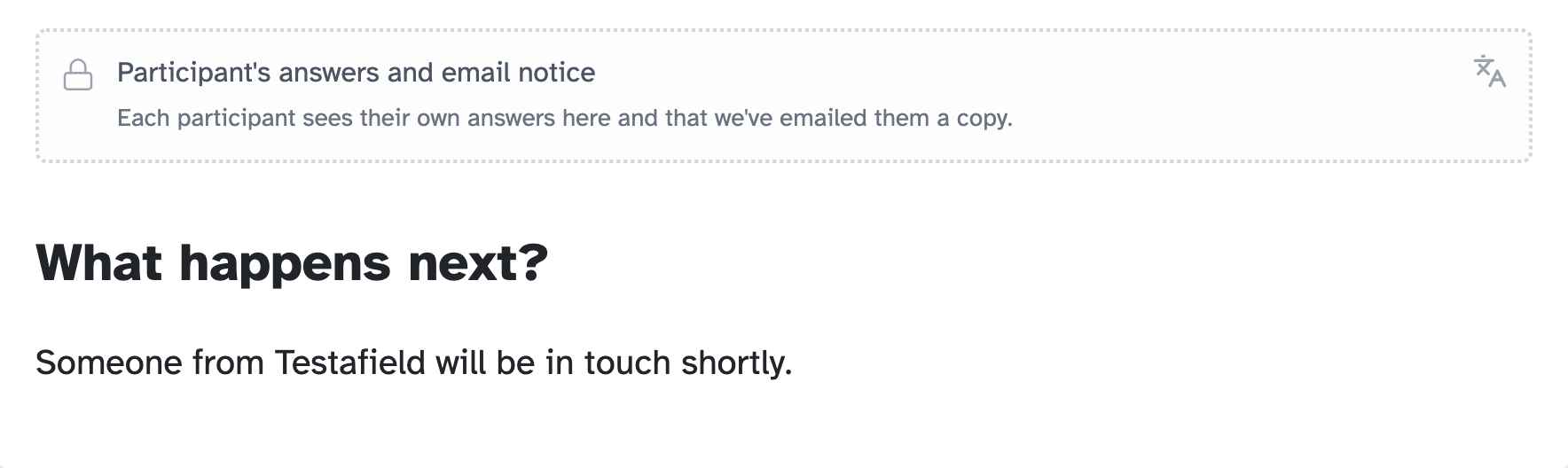
Default text
When you open the editor, it shows the default text. Participants see it until you change it. To revert to the default text, delete everything you wrote.
Key takeaways
💡 Remember: You can write above and below fixed content, but you can’t remove it.
🧪 Try: Use a heading such as “What happens next?” so people find the important part quickly.
⚠️ Watch for: Deleting everything you wrote brings back the default text.
⚡ Quick tip: Click Preview page to see the page exactly as participants will.