
Choose what people see after a screener or panel sign-up
After someone submits a screener or joins your panel, you can show them a thank-you page you write or send them to another website. You set this on the form’s Workflows tab.
This works the same way on:
- study screeners
- panel sign-up forms
- panel screeners
For consent forms and agreements, read Choose what happens after someone agrees to your form.
Who can use this
- Study screeners: organisation admins and members who have access to the study’s project.
- Panel forms: organisation admins and panel managers.
1. Open the workflow
- Open the screener or panel form.
- Click the Workflows tab.
On a panel sign-up form, people see your page only after they click the link in the double opt-in email to confirm they want to join.
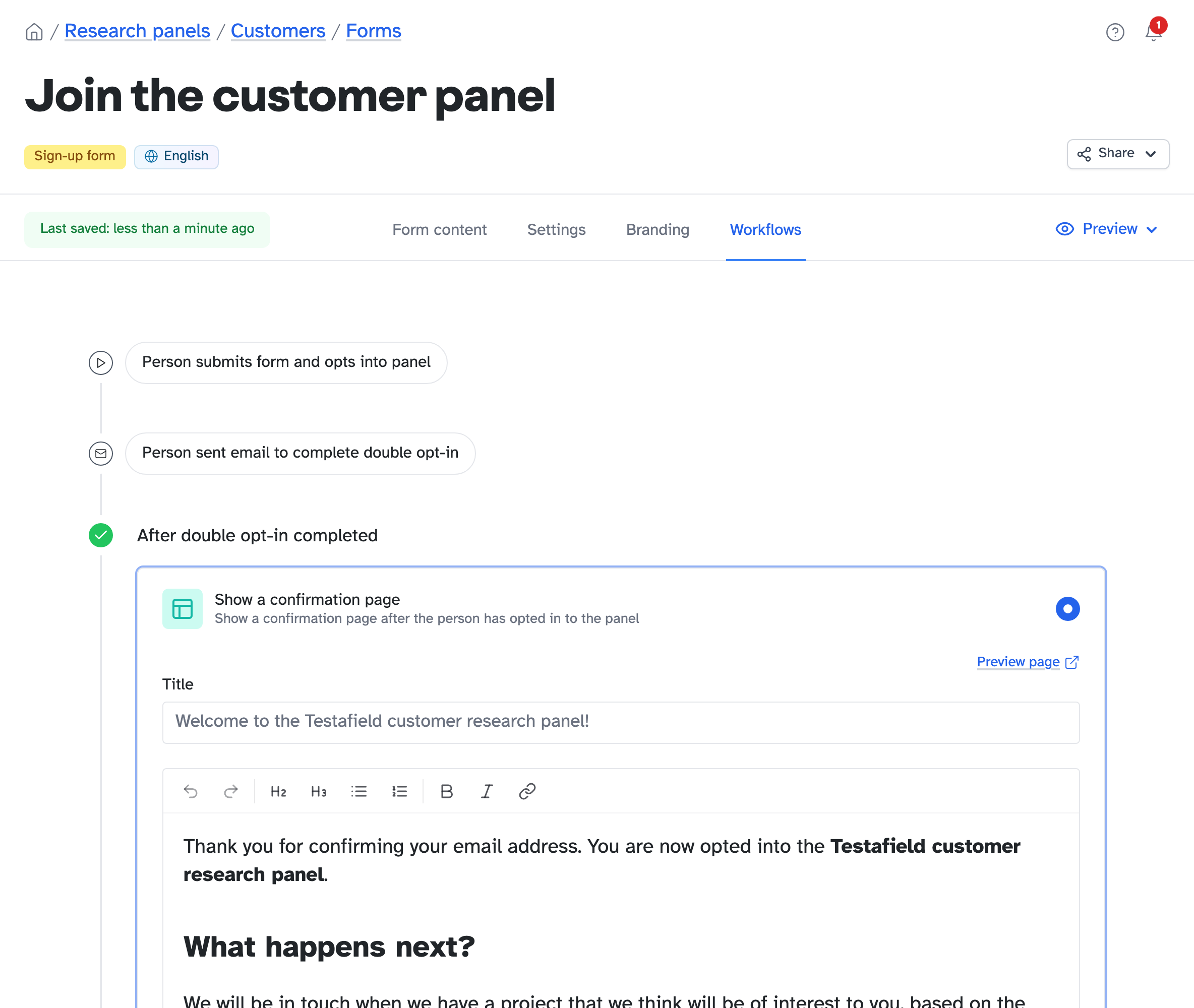
2. Choose a page or a redirect
Choose one:
- Show a confirmation page: a page you write. This is the default.
- Redirect to a custom URL: send people to another website, such as an unmoderated study or your own thank-you page.
3. Write the page
- In Title, type the page’s title. If you leave it blank, people see the default title.
- In Page content, write what you want them to read.
- Click Preview page to see it as they will.
Changes save as you make them. Until you change the page content, people see the default text.
To format the page, read Format text in Participant Kit.
The panel confirmation email
On a panel sign-up form, the Workflows tab also has the email people get once they’ve joined. Change it under Edit email and check it under Preview. You can add the person’s name and the panel’s title from the variables menu in the email toolbar.
Key takeaways
💡 Remember: Each form has its own thank-you page, set on its Workflows tab.
🧪 Try: Tell people what happens next, for example when they might hear about a study.
⚠️ Watch for: On a panel sign-up form, people see your page only after they confirm their email.
⚡ Quick tip: Add a panel screener link to the confirmation email to ask new panellists more questions straight away.