
Finding the right people: more powerful filters, saved as views
Friday Drop
Friday Drop 005. Save the columns, sort and filters you use most as a view, filter on what people have done across studies, with more powerful filters.
Friday Drop, batch 005. This week is about finding the right people in your panel.
Most recruitment from a panel starts the same way. You open the panel, select the columns you care about, build the same filter you built last month and start reading. Then you do it again for the next study. This week is three changes that take that work off you.
Save a view instead of rebuilding the list
A view remembers which columns you selected, how the table is sorted and the filters you applied. Name it once and it’s a click away, with its own URL you can bookmark.
You might have heard this called a segment, or a saved search. The difference is that you’re not just saving a filter, you’re saving how the information is displayed as well, so the table opens ready to read.
Keep as many as you need. “Not contacted yet” for people who are fresh to ask, one with the fields you check before a round of interviews, one per project if that’s how you work.
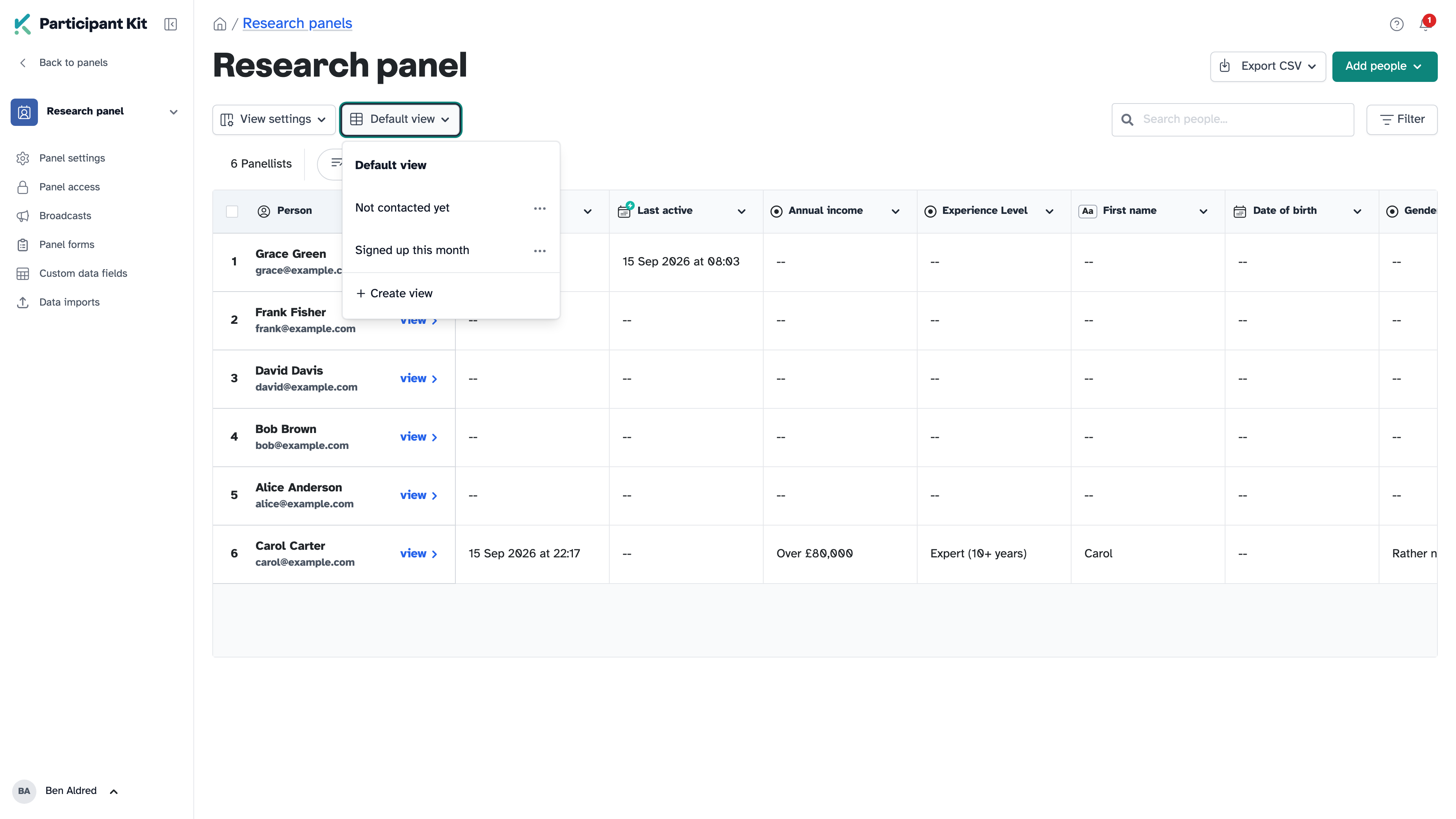
Change the columns, the sort or the filters while a view is open and a blue dot appears next to its name, with Save and Discard beside it. So you can try something without touching the view you saved, and keep it or throw it away when you’re done.
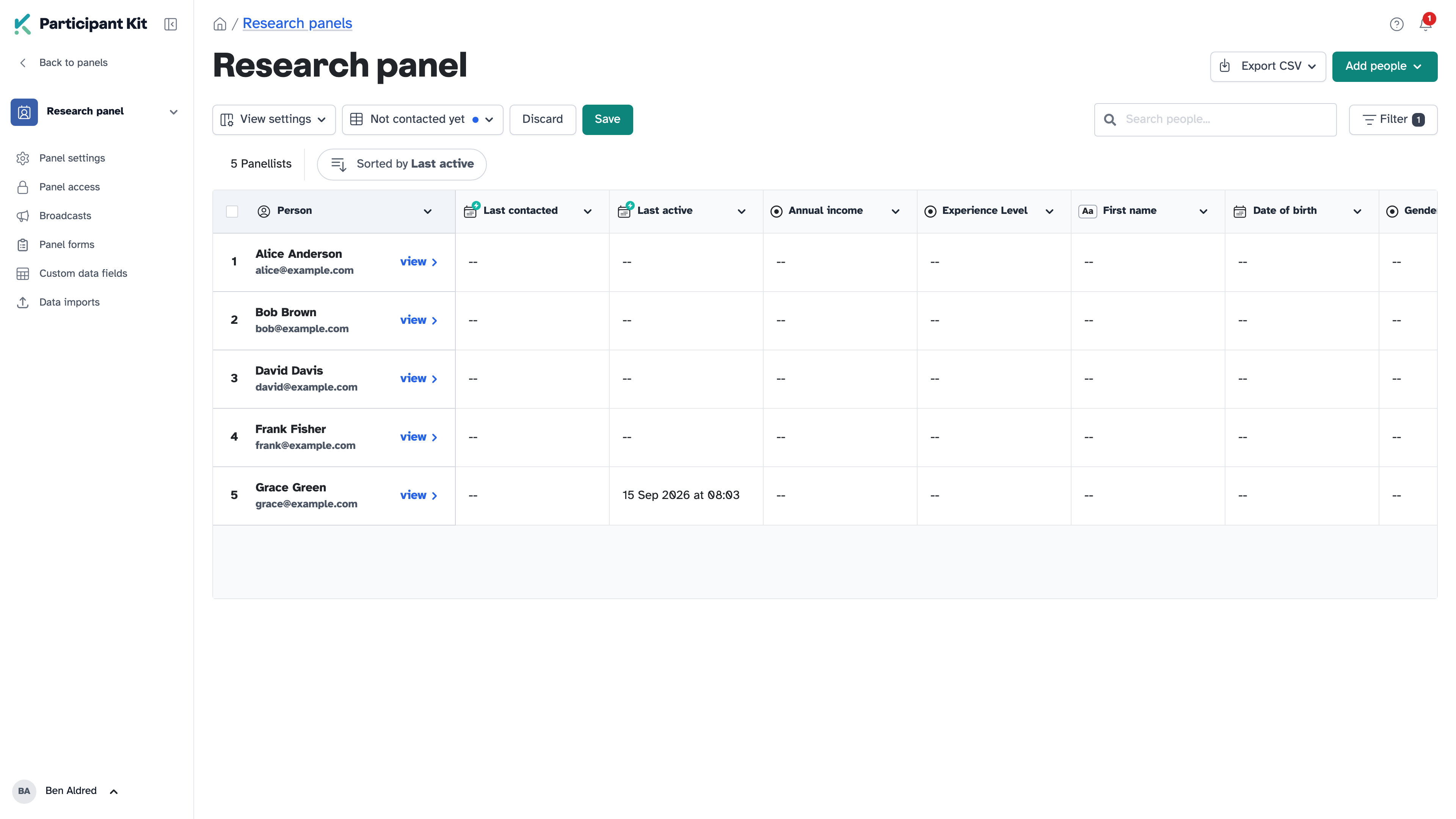
Views are personal. Nobody else on your team sees yours, and you don’t see theirs.
Filter on what people have done
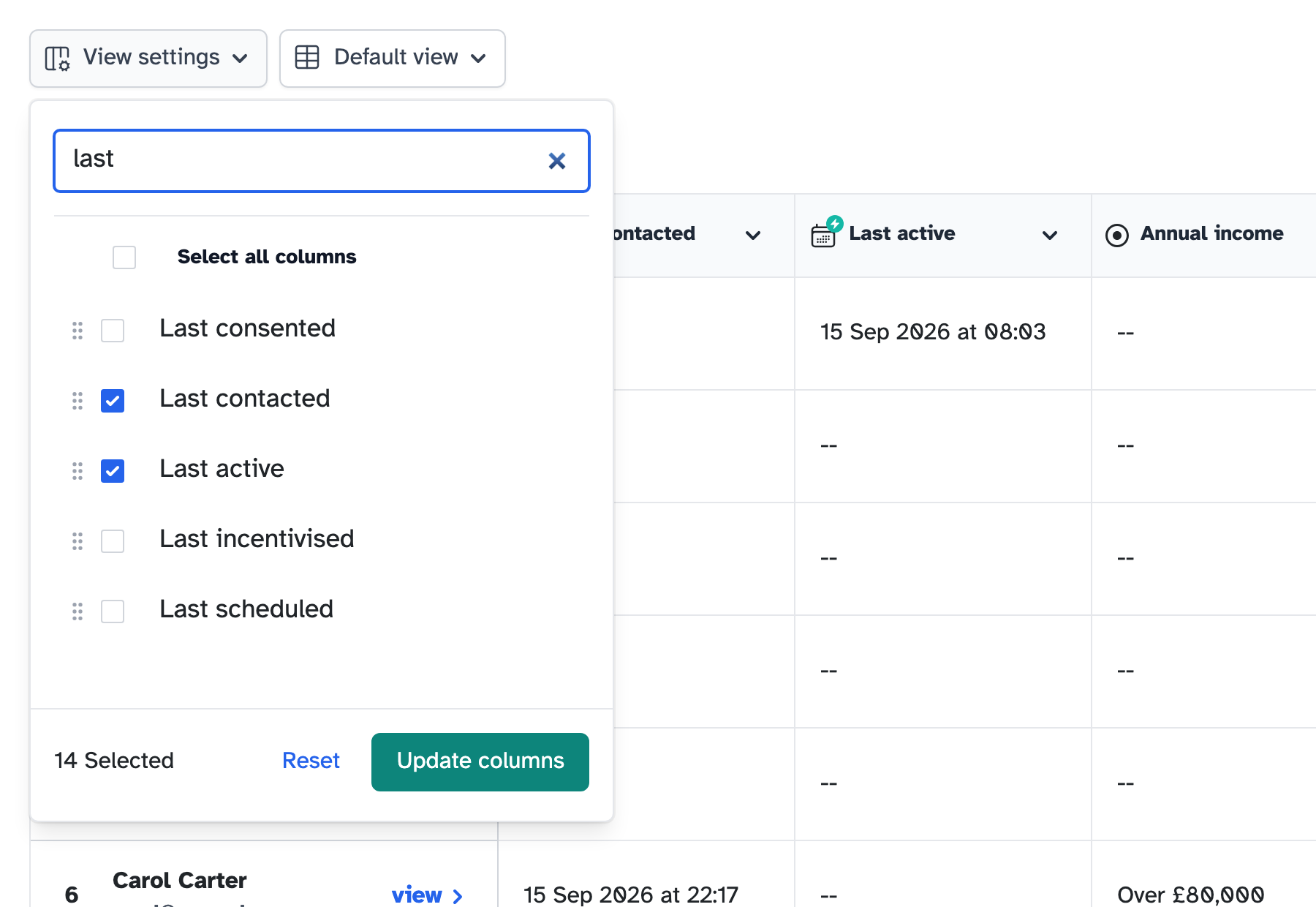
Three dates are now available as columns and as filters: Last consented, Last incentivised and Last scheduled. They join Last contacted and Last active, and they all cover every study someone has taken part in, not just the one in front of you.
The one most people want first is the opposite: everyone who hasn’t done anything yet. Filter for people with no activity and you have a list of panellists who are fresh to ask, rather than the same faces you invited last time.
They’re not visible by default, so select them in View settings.
Filters that handle “and” as well as “or”
The advanced filter used to join every condition with “and”. Now you can switch it to “or”, and group conditions together, so one filter can say “under 30, and either a student or unemployed”.
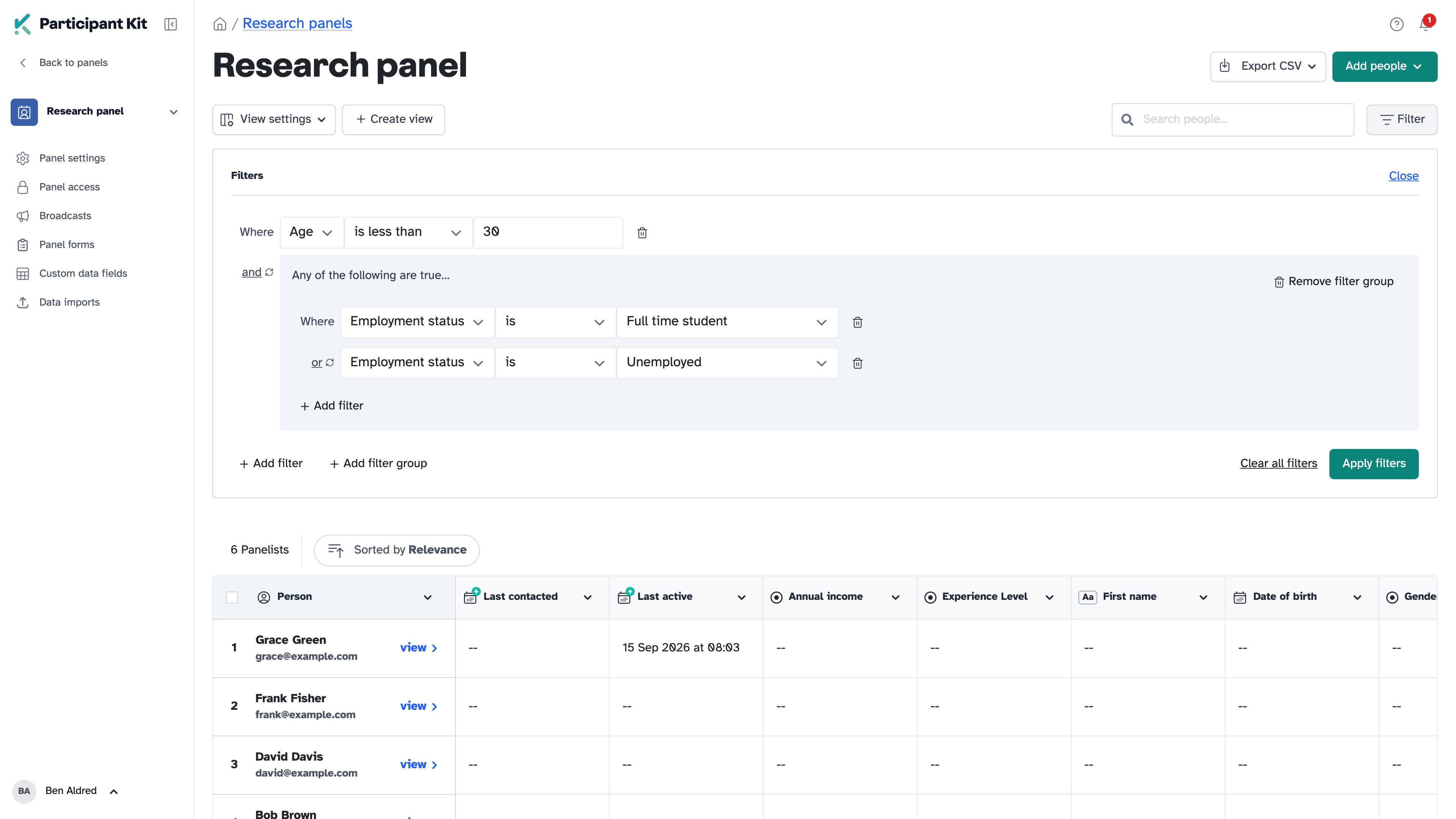
The property picker searches, so you can type the field you want rather than scrolling for it. This is the filter you get on your panel, on Add from panel, on shortlists and when you choose who gets a broadcast.
Help articles
- Filtering your panel to find the right people
- Saving views of your panel table
- What the smart fields mean
- Add people from your panel to a study
New to Participant Kit? Book a call and we’ll show you round.