
Control who can join your panel
Use this when only some people should be able to join your panel through its sign-up form. For example, a staff panel that’s only for people with a company email address. Or a panel only for the countries you research in.
There are two ways to do it. You can use both on the same panel:
- Custom rules stop people automatically, by their email domain or their country
- Approval holds everyone who signs up until you’ve checked them
Both only apply to your panel’s sign-up form. People you import or add yourself join as normal. People already in your panel aren’t affected.
Who can use this
Organisation admins and anyone with the panel manager role who has access to the panel. Researchers don’t see these settings or the Pending approval page.
Stop sign-ups by email domain or country
1. Add a custom rule
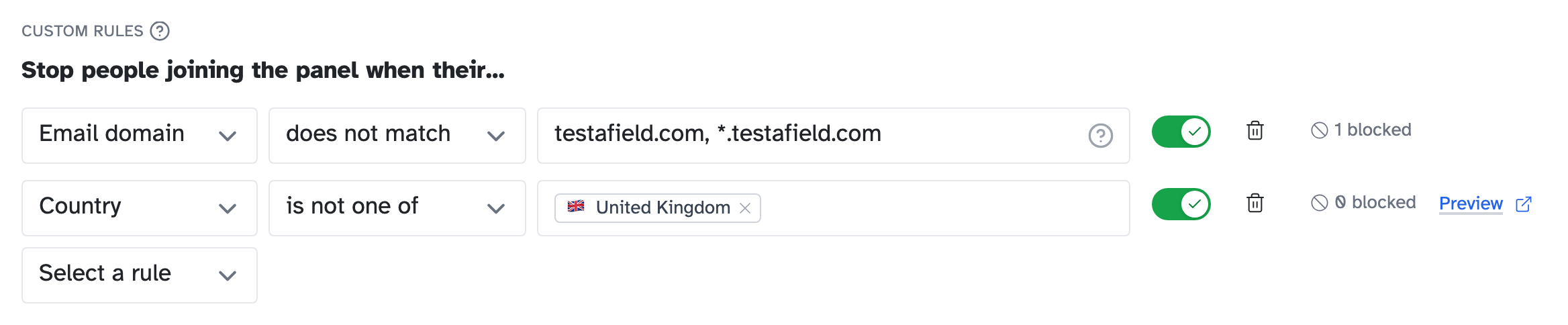
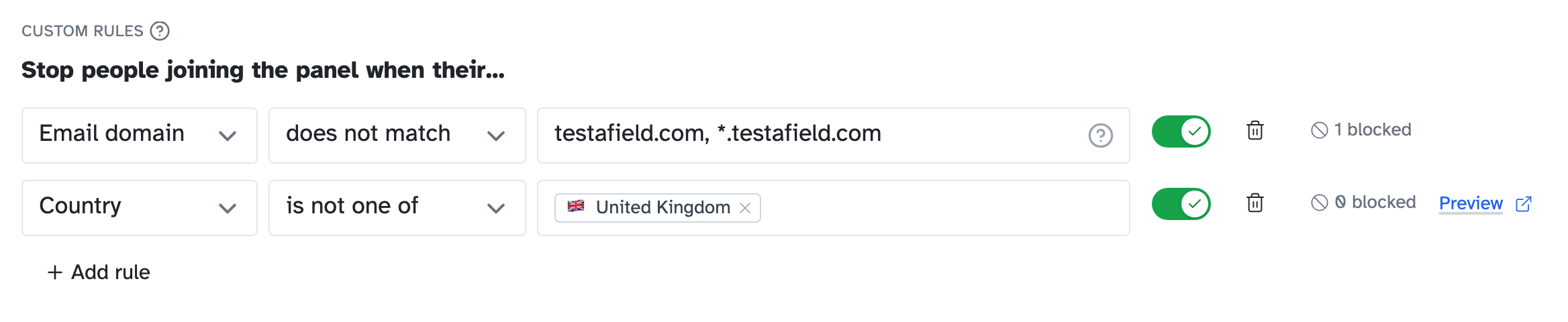
Go to Panel settings in your panel’s sidebar and scroll to Panel rules. Under Custom rules, click Add rule, then choose Email domain or Country.
2. Choose who the rule stops
| Rule | Condition | Stops |
|---|---|---|
| Email domain | does not match | everyone except the domains you list |
| Email domain | matches | only the domains you list |
| Country | is not one of | everyone except the countries you choose |
| Country | is one of | only the countries you choose |
For an email domain, type the part after the @, like example.org. Separate domains with commas. A * matches anything, so *.example.org covers every subdomain, like uk.example.org. It doesn’t cover example.org itself, so list both if you need both.
3. Switch the rule on
A new rule starts switched off. Once you’ve added at least one domain or country, switch it on. Changes save as you go.
What people see when a rule stops them
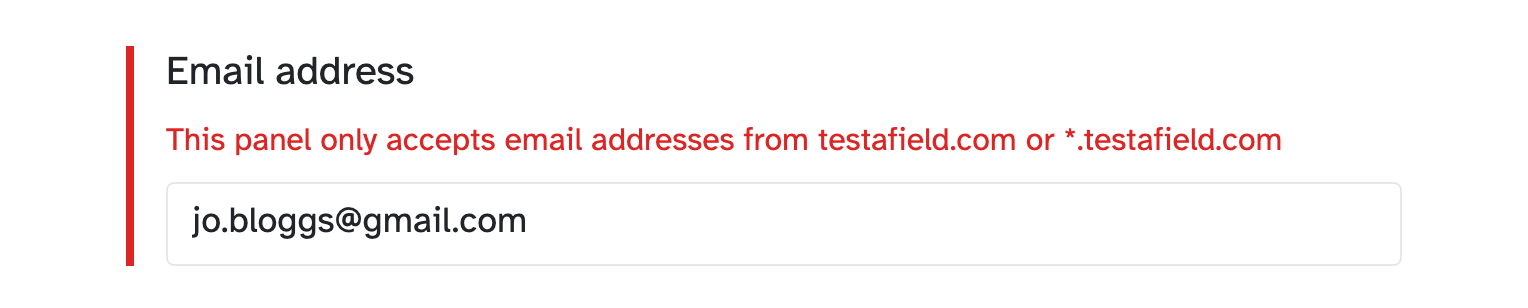
An email domain rule shows an error on the email question. The error names the domains you allow, but never the ones you block.
A country rule stops them before they see the form. They get a page saying they can’t join from their location. To see it yourself, click Preview next to the rule.
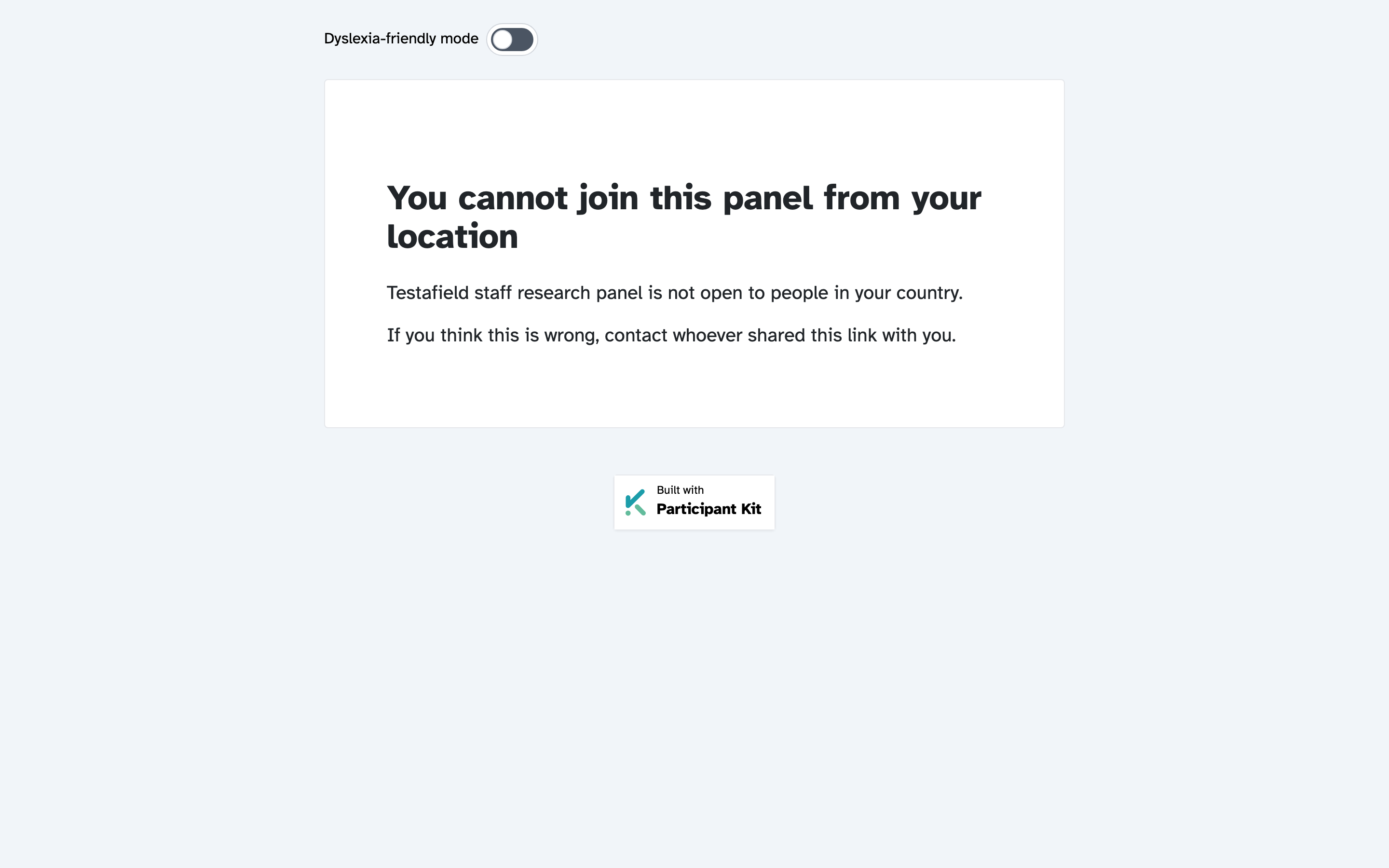
We work out the country from the visitor’s internet connection. If we can’t tell where someone is, they can still sign up.
Check everyone before they join
1. Switch on approval
In Panel settings, under Subscription approval, switch on Check everyone who signs up before they join the panel.

From now on, people sign up and confirm their email as usual, then wait for you to approve them.
They don’t get the panel’s welcome email, either while they wait or when you approve them.
2. Approve or reject people
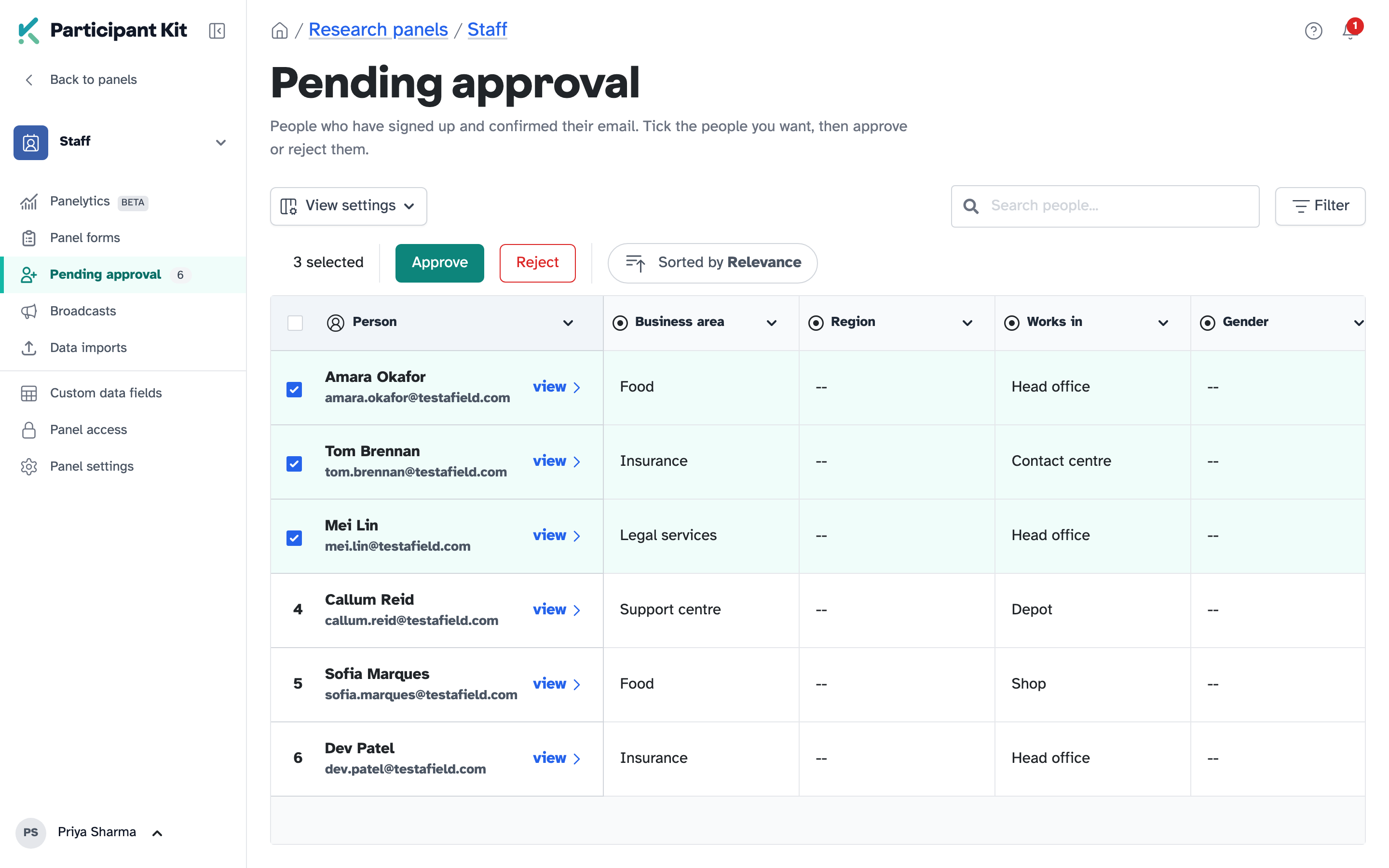
Click Pending approval in your panel’s sidebar. Tick the people you want, then click Approve or Reject.
What rejecting someone does
Rejecting someone:
- stops them joining this panel
- deletes the answers they gave on the sign-up form
- stops them signing up to this panel again
They stay in any other panel they’re part of.
If you switch approval off
New sign-ups join straight away again. Anyone already waiting stays on Pending approval until you approve or reject them.
Key takeaways
💡 Remember: Custom rules and approval only apply to your panel’s sign-up form. People you import or add yourself aren’t checked.
🧪 Try: For a staff-only panel, add an email domain rule that does not match your company’s domain and its subdomains, like yourcompany.com, *.yourcompany.com.
⚠️ Watch for: Rejecting someone deletes their sign-up answers and stops them signing up to this panel again.
⚡ Quick tip: Use custom rules for the people you’d always say no to. Then approval only has to cover the people you need to check by hand.